Your account & security
Update your name, email, profile photo and password, and sign out other devices you are still logged in on.
Where to find your settings
Everything on the site is shared — the calendar, the photos, the grocery list, the opinions about August. This page is the one part that is only yours: your name, your email address, your password and the locks on your own door.
Click your avatar in the top-right corner. The menu that drops down has the link you want:
- Administrators see User Settings.
- Schedulers see Manage Account.
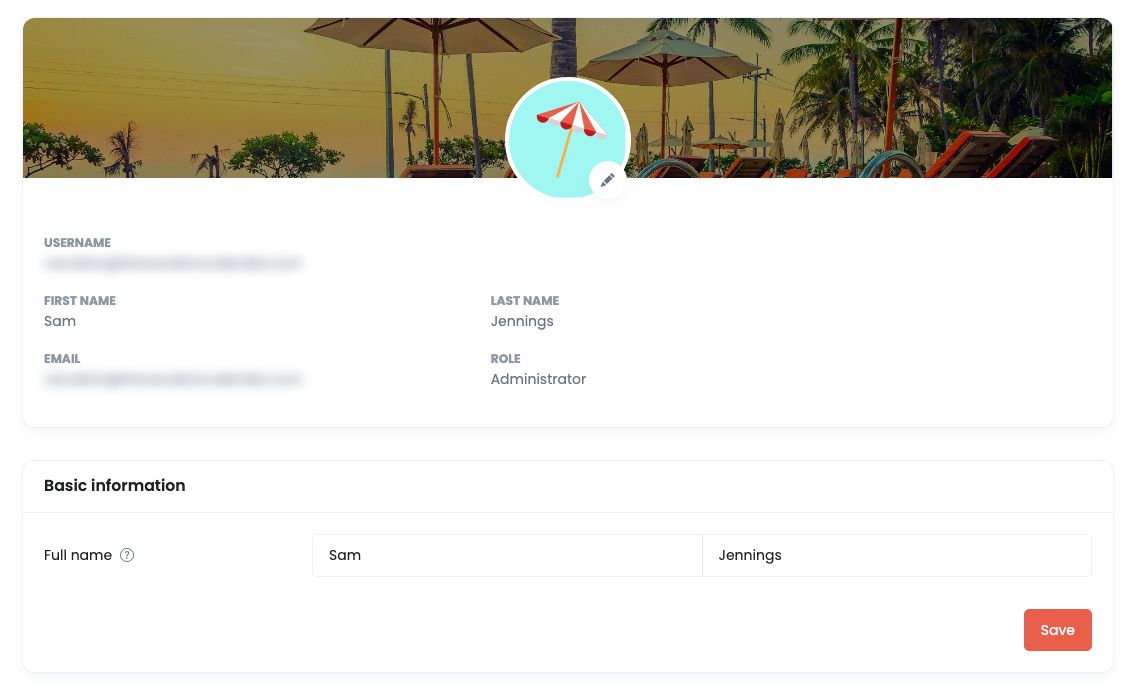
Different names, the same page, with the same cards on it: Profile Photo, Basic information, Change your email, Change your password and Recent devices. Administrators can also reach it from the Settings list in the left sidebar.
A Guest is a shared password rather than a person, so there is no profile to edit and no password to reset. If the guest password stops working, ask your Administrator, who can set a new one in seconds. See Users and guest access.
Profile and email
Three cards handle who you are.
Profile Photo is the small round picture beside your name. It shows up next to your vacations on the calendar, on your blog posts and beside your comments, which is exactly why it is worth two minutes. On a busy August grid, a face is faster to read than a name — particularly in families where three people share one.
Basic information holds your first and last name. Put in the name the family actually calls you. "Bob" beats "Robert J." when somebody is trying to work out whose week the blue block is.
Change your email updates the address on your account. This is the address your login details were sent to, and the one that receives anything an Administrator has put you on — calendar changes, approvals, new photos. If you have switched email provider and quietly stopped hearing from the site, this card is usually the reason. Worth checking against Notifications, because a distribution list holds whatever address was typed into it, not whatever address you have now.
Changing your password
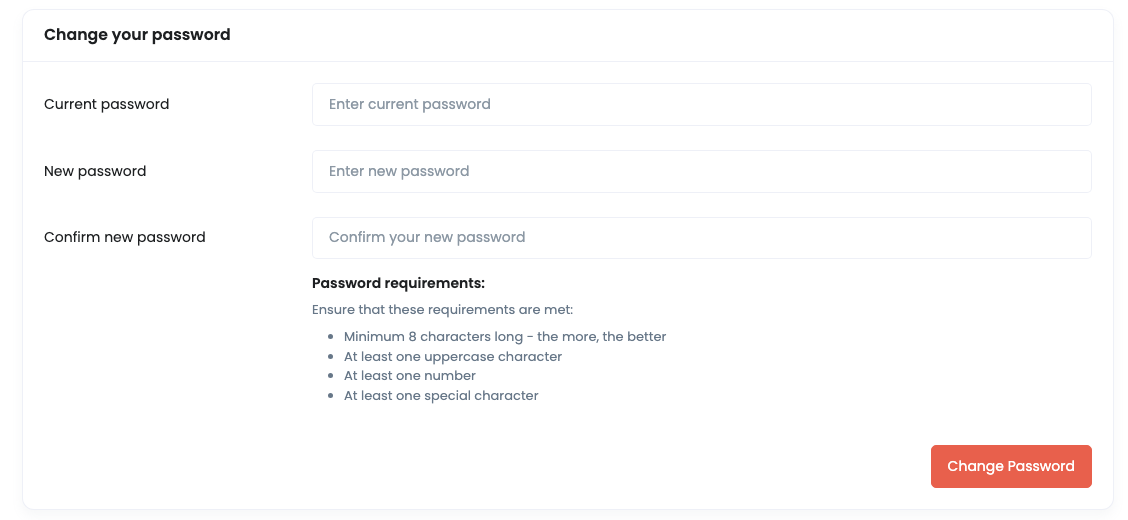
The Change your password card asks for your current password, then the new one twice.
A password needs an uppercase letter, a number and a special character — the same rule an Administrator follows when creating your account.
- Open User Settings or Manage Account from the avatar menu.
- Find Change your password.
- Type your current password, then your new one in both boxes.
- Save. You stay logged in on this device.
Change it the first time you log in, if an Administrator picked the first one for you. They set it, they emailed it to you, and it has been sitting in your inbox ever since.
If your family runs more than one property, you have a single account across all of them, matched by your email address. Changing your password here changes it for every house you belong to, which is one less thing to keep track of.
If you cannot get in at all, the login page has a Forget Password? link that emails you a reset link. Details in Logging in.
Recent devices
Recent devices lists the browsers that are currently signed in to your account, with the device and the last time each one was active. It is a short, useful list, and it answers a question people ask more often than you would think: am I still logged in on the laptop we left at the house?
The button underneath is Log Out Other Browser Sessions. Enter your password and every session except the one you are using is ended. The hotel business center, the old phone, the computer in the rental you stayed in last summer — all closed, in one click, without touching your password.
Use it whenever a device leaves your life: sold, lost, handed down, or simply used once somewhere you would not choose again. It costs nothing, and the people it logs out are, almost always, only you.
Common questions
Related topics
Still stuck?
Send us a note with your house name and a real person will answer. Short video walkthroughs are on our YouTube playlist.


