Multiple properties
On Premium, add up to nine more houses, each with its own calendar and content, switch between them with one login, and see every property on one calendar.
How multiple properties work
Some families end up with more than one place. The lake house and the ski condo. The cottage and the cabin the in-laws left. Three units in the same building, booked by three branches of the family who all have opinions about August.
On the Premium plan you can run up to nine additional houses alongside your primary one, from a single login. Each house is genuinely its own site. It has its own calendar, bulletin board, blog, photo albums, local guide, food lists, guest book, documents, financials and settings, and nothing crosses over. A photo uploaded to the cabin does not appear at the lake. The house rules for one are not the house rules for the other. That is the point: two properties that share a calendar end up with everybody reading the wrong week.
Two things deliberately stay in one place, on the primary house:
- Users. One list of people, with each person given the houses they belong to. You are not maintaining four copies of your family.
- Billing. One Premium subscription covers all of it. See Plans, billing and PayPal.
Additional houses have no login page of their own. Everyone logs into the primary house as usual and switches from inside the site, which also means there is only one house link to put on the fridge.
Adding a house
Adding a property is an Administrator job, and specifically the primary Administrator's — the person whose account holds the subscription.
- Go to Admin → Settings → Additional Houses. If you do not see the menu item, the account is not on Premium yet.
- Press + Add New House in the top right.
- Give the house its details: the name people will see, plus country, state, city and zipcode.
- Set the Primary House Name, the short internal label that distinguishes this property in menus and lists. "Cabin" beats "The Family Property at Blue Ridge, LLC".
- Save. The new house appears in the list, and you can switch to it right away.
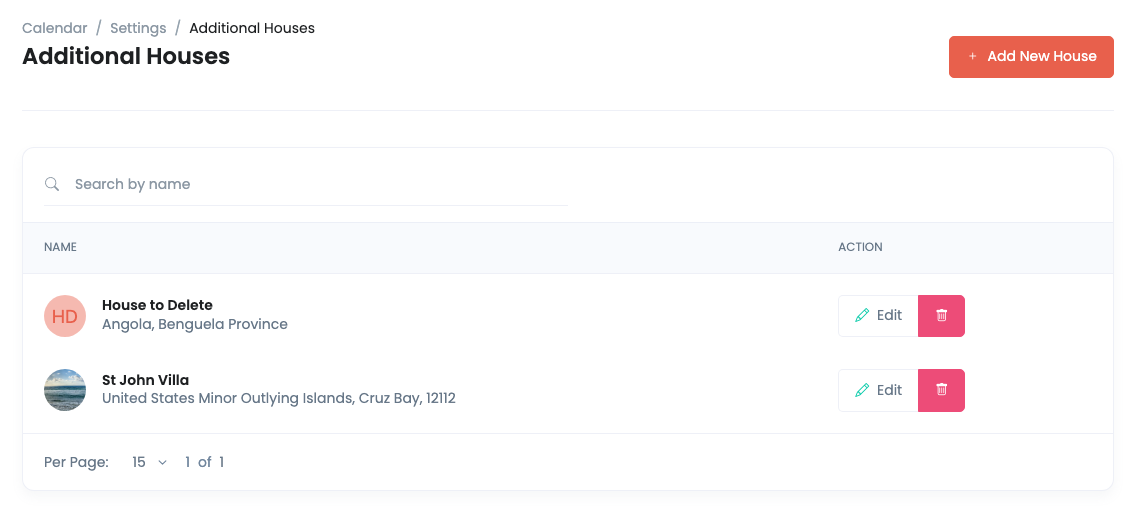
A brand new house starts empty, the same way your first one did. Switch to it and work through the same setup: notifications, categories, calendar rules, an album or two. The Administrator setup checklist is worth another ten minutes here, because none of your first house's settings carry over.
Use the Edit pencil to change a house's details later, and Search by name if you have enough properties for that to be a sentence you say.
Switching between houses
The switch lives in the top-right menu, next to your avatar: a Properties control showing the house you are currently in. Open it, pick another, and the whole site changes under you — calendar, photos, bulletin board, settings, everything. The house you are in is always named in that menu, so a glance tells you whose August you are looking at.
It is worth building the habit of checking it before you add anything. Booking a week on the wrong property is the classic multi-house mistake, and it is invisible until somebody turns up at the wrong door.
"Lake" and "Ski" are better house names than "Property 1" and "Property 2". You will be reading them in a small dropdown, in a hurry, on a phone.
Giving users access to more than one house
People are given houses in the same form you use to create them. Go to Admin → Settings → Users, add or edit someone, and the House(s) field becomes a multi-select once your account has more than one property. Check every house that person should reach.
Most families end up with three shapes of person:
| Who | Houses | What they see |
|---|---|---|
| The branch of the family who only use the cabin | One | No Properties switch at all. The site behaves exactly like a single-house account. |
| The cousins who use both places | Two or more | A Properties switch in the top-right menu, listing only the houses they were given. |
| You | All of them | Everything, plus the Users and Billing pages on the primary house. |
A Scheduler with more than one house gets the same Properties switch an Administrator does — it is not an Administrator-only control. Their permissions inside each house are unchanged; they simply have more than one calendar to work in.
Two practical notes. A person who belongs to two houses is matched by their email address, so use the same address for them everywhere. And if they change their password, it changes on every house they belong to, because it is one account rather than several that look alike.
Each house also keeps its own Guest row, with its own shared password. Hand out the cabin's guest password to the people borrowing the cabin, and it opens the cabin only. More on that in Users and guest access.
All properties on one calendar
Switching is right when you are working on one house. It is wrong when the question is "is anybody anywhere this weekend?"
For that, the calendar has its own Properties filter, separate from the switch in the avatar menu. It offers All plus a checkbox for each of your houses, so you can lay every property over the same month and see the whole family's summer at once, or check two of the four and compare them.
It is the view to open before you promise anyone anything. The views and filters topic covers the rest of the calendar's filtering, including narrowing by person, and it all works together: all properties, one family member, July.
Common questions
Related topics
Still stuck?
Send us a note with your house name and a real person will answer. Short video walkthroughs are on our YouTube playlist.


