Notifications & emails
Eight distribution lists decide who hears about calendar changes, approvals, requests, blog posts, photos and more. Here is exactly what each one sends.
How distribution lists work
The whole point of a shared calendar is that nobody has to ask. But somebody still has to notice, and people do not check a website every day. Notifications are how the site taps the right shoulder.
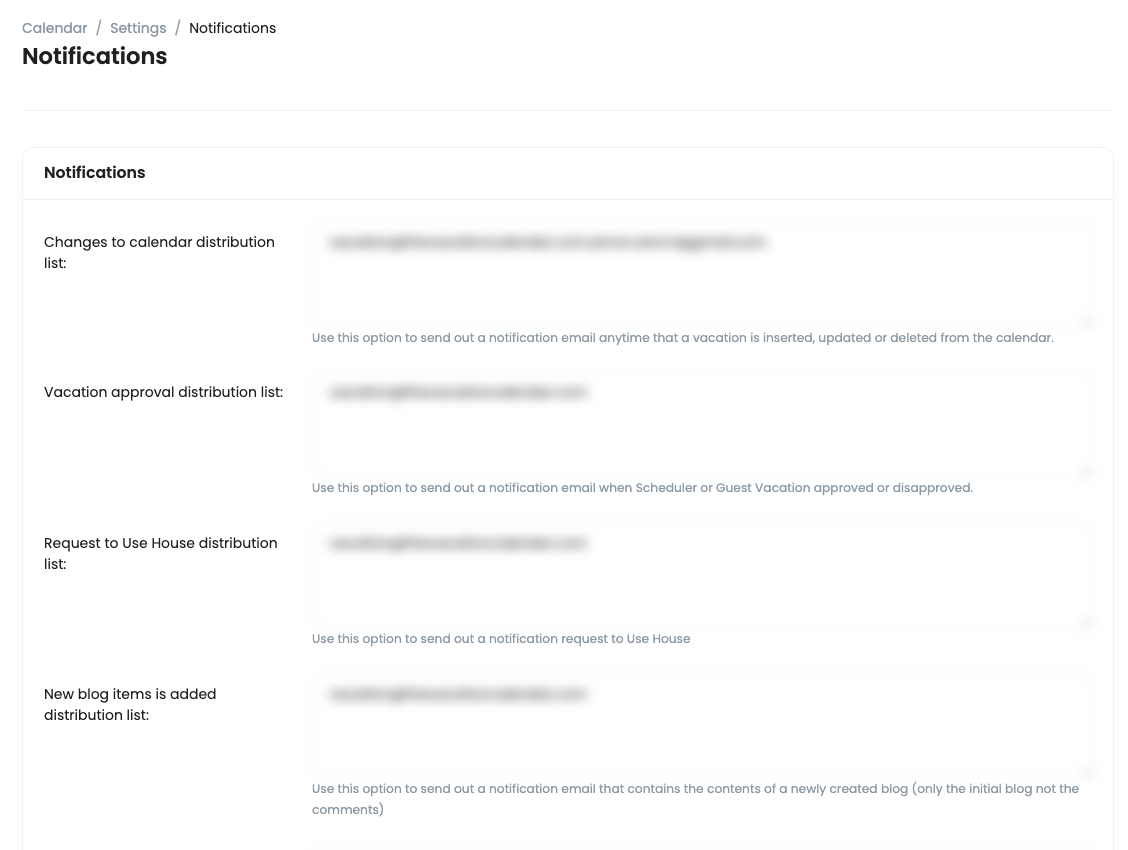
Go to Admin → Settings → Notifications. You will find eight fields, one for each kind of thing that can happen, and each one carries the same instruction: Separate multiple emails by comma, leave blank for no notification. That is the entire system. Type the addresses that should hear about calendar changes into the calendar field. Leave the food field empty if nobody cares who added milk to the list.
They are distribution lists, not subscriptions. People do not sign themselves up and cannot opt themselves out; you decide who hears what. Two consequences catch new Administrators out:
- You are not on any list automatically. Administrators are only emailed if their address is typed into a field, exactly like everyone else. If you turn on vacation approvals and forget to add yourself to the approval list, requests will sit there waiting and nobody will know.
- The address does not have to belong to a user. Any email address works, so the neighbor who keeps an eye on the place can get calendar changes without having an account at all.
Make it Changes to calendar, with the whole family on it. It is the one list where being told beats being surprised, and it is the reason the spreadsheet existed in the first place.
The eight lists
Here is every list, what sets it off, and what lands in the inbox.
| List | What triggers it | Subject line |
|---|---|---|
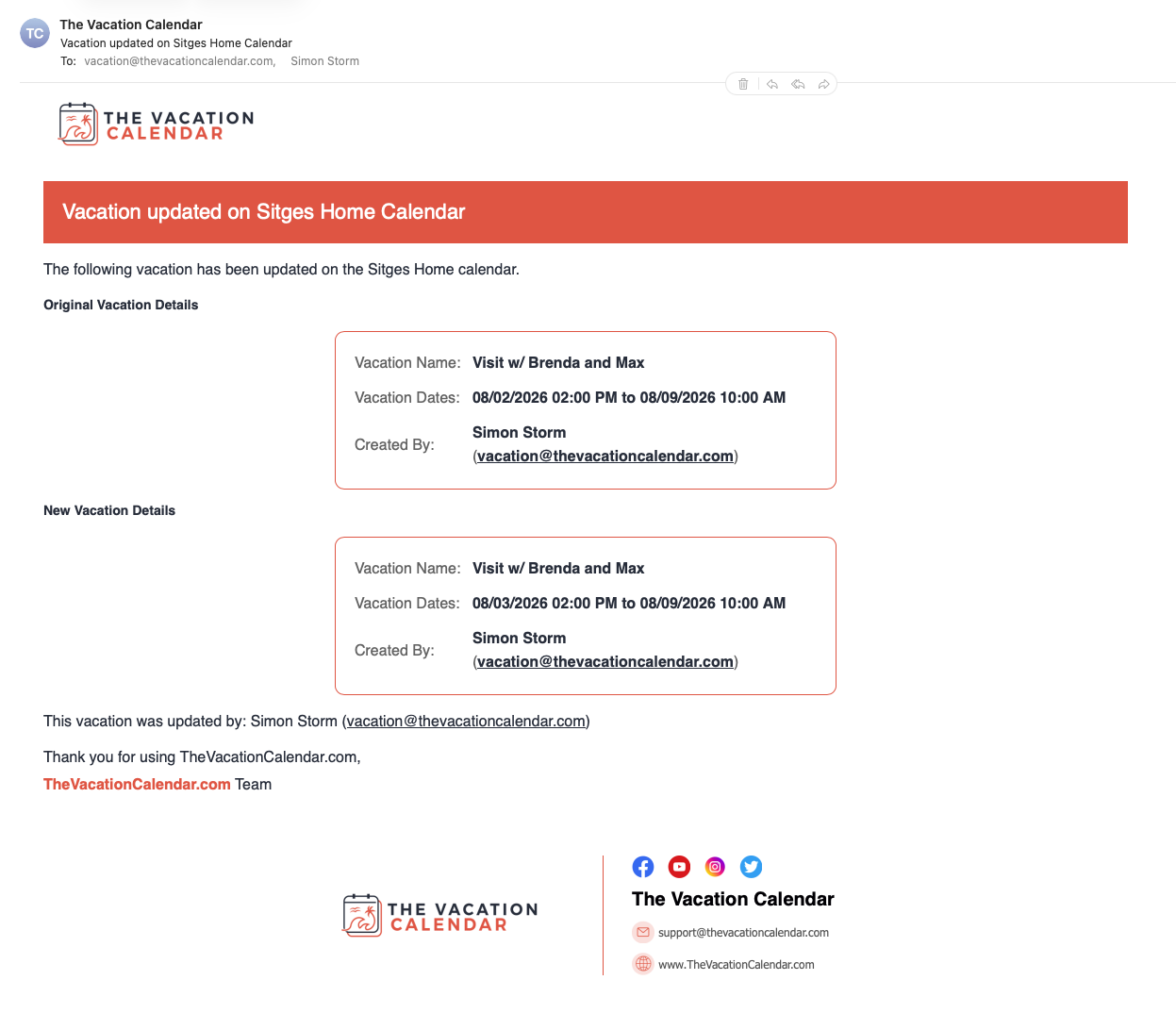
| Changes to calendar | A vacation is added, edited or removed | "New Vacation added to <House> Calendar" "Vacation updated on <House> Calendar" "Vacation removed from <House> Calendar" |
| Vacation approval | A booking is waiting for an Administrator to decide | "Approval Request for <Vacation> at <House>" |
| Request to Use House | Somebody asks to use the house from the calendar | "Request to Use <House>" |
| New blog items | A blog post is published | "New Blog entry added to <House>" |
| New local guide item | A local guide entry is added | "New Local Guide entry added to <House>" |
| New guest book item | Somebody signs the guest book | "New Guest Book entry added to <House>" |
| New photo | A photo is uploaded to an album | "New Picture added to <House>" |
| New food items | An item is added to a food or shopping list | "New Food Item was added to <House>" "New Shopping Item was added to <House>" |
Note what is not on that list. The bulletin board never emails anybody, which is exactly right for a place that holds the Wi-Fi password and the trash day. Comments and likes never email either, so a lively blog post does not turn into forty messages.
Which email says what
Every email comes from info@thevacationcalendar.com, names your house in the subject, and says who made the change. That last part matters more than it sounds: "Vacation updated" is an annoyance, "Vacation updated by Dad" is information.
Beyond the eight lists, a few emails go to individual people rather than to a distribution list:
- "<Vacation> at <House> was Approved", "was Unapproved" or "was Denied" — to the person whose booking it was, when an Administrator decides.
- "Request to Join <Vacation> at <House>" — when somebody asks to come along on a vacation that is already on the calendar.
- "Welcome to TheVacationCalendar.com" — to a new user, when you create their account with Send Email set to Yes.
- "Access to TheVacationCalendar.com" — their login details again, whenever you press the Send Mail envelope on the Users page.
Approvals change the timing of the calendar emails, which surprises people. With approvals switched on, a Scheduler's request sends only the Approval Request email. The New Vacation added email to the Changes to calendar list goes out when you approve it — so the family hears about confirmed weeks, not about every request.
Tips
- Start with one list, not eight. Put the family on Changes to calendar, leave the rest blank, and add more only when somebody asks to be told about photos.
- Put yourself on Vacation approval. If you run approvals, this is not optional. An unseen request is a family argument with a delay fuse.
- Different lists, different people. The person who wants every photo is rarely the person who wants every grocery item. That is why there are eight fields and not one.
- Mind the commas. One comma between addresses, no spare punctuation at the end. A malformed address just means somebody quietly never hears from you.
- Check it after a change. When somebody leaves the family circle or changes email provider, their old address is still sitting in these fields.
- Tell people to whitelist the sender. Family members on strict spam filters should add info@thevacationcalendar.com to their contacts, once.
- On Premium, each house has its own lists. Switch property first, then set its notifications. See Multiple properties.
There is no default list and no fallback address. An empty field is not "send it to the Administrator", it is "tell nobody". Worth a look at the Notifications page before you assume the site is broken.
Common questions
Related topics
Still stuck?
Send us a note with your house name and a real person will answer. Short video walkthroughs are on our YouTube playlist.


