Booking rooms
On Standard and Premium plans, define the bedrooms in your house and let each vacation reserve specific rooms for specific nights.
Older videos say "Owner" where the site now says "Scheduler". Same role, new name.
Which plans include rooms
Some houses are booked a week at a time by one family, and that is that. Others sleep fourteen, and the real question is never "is the house free?" but "who gets the room with the good bed?". Room booking is for the second kind of house.
| Plan | Rooms |
|---|---|
| Basic | No room booking. |
| Standard | Up to 6 rooms. |
| Premium | Unlimited rooms. |
Six rooms covers most family houses comfortably. If yours is a bunkhouse with nine bedrooms and a converted loft, you want Premium. See Plans, billing & PayPal for the rest of what each plan includes.
Turning on room booking
Rooms are off until an Administrator asks for them.
- Go to Admin → Settings → Calendar Settings.
- Find the Rooms card and switch on Show room booking screen.
- Press Save Changes.
Two things change right away. The Schedule Vacation page grows a Book Rooms option, and a Rooms button appears with the other view buttons above the calendar. The rest of Calendar rules carries on exactly as before.
Defining your rooms
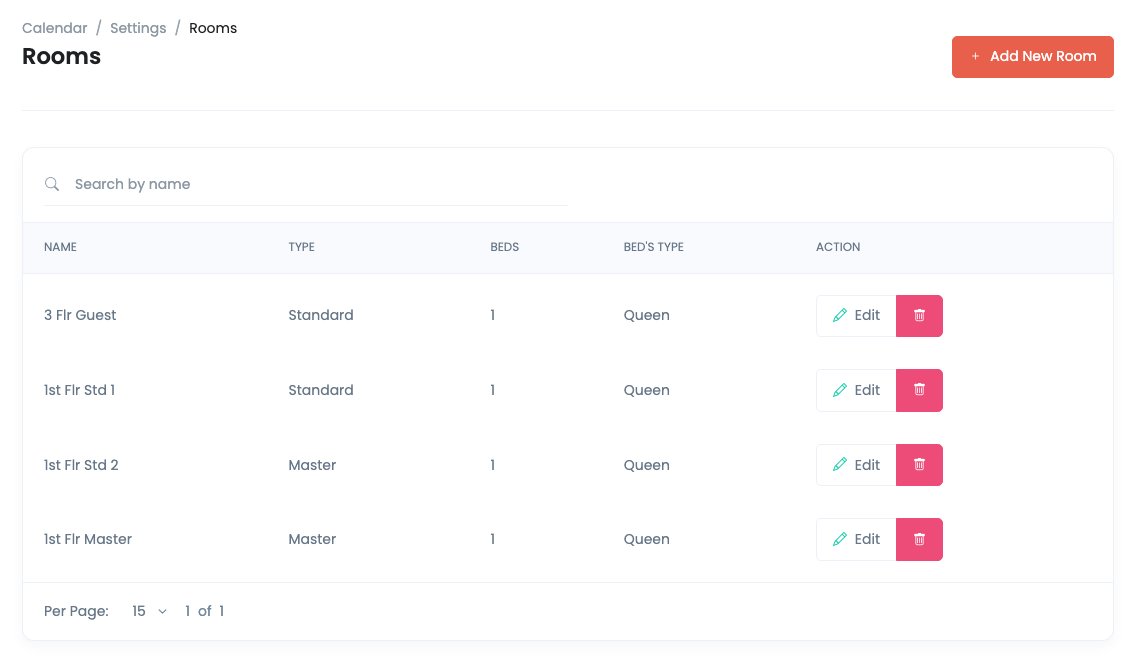
Next, tell the site what the house actually has. Go to Settings → Rooms and click + Add New Room for each bedroom.
- Room Name. Use the name your family already uses out loud. "The Blue Room", "Grandma's Room", "Bunk Room over the garage". Never "Bedroom 3", which nobody has ever said at your house.
- Room Type. What sort of space it is.
- Beds. How many beds are in it, from 1 to 20.
- Bed Type. King, Queen, Full, Twin or Bunk. This is the field that settles arguments before they start, because now everyone can see that the room upstairs really is two twins.
Spend ten minutes doing this properly once. Walk the house, add the rooms as you go, and you will not touch the page again for a year.
Add the couch that sleeps two, the pull-out in the den and the screened porch with the cot. If people sleep there in August, it is a room.
Booking rooms in a vacation
Room booking happens inside a vacation, not separately from it. Add or open a vacation as usual, then:
- Switch on Book Rooms.
- Choose the rooms you need. Take one or take them all.
- Type in the names of the people sleeping in each room.
- Set each room's check-in and check-out, anywhere inside the dates of the vacation.
- Save the vacation.
That fourth step is the one families fall in love with. Real trips do not start on one day: the grandparents come Friday, your brother's family arrives Sunday, and two cousins leave early on Wednesday. Each room can hold its own dates within the week, so the calendar tells the truth instead of a tidy fiction.
Occupant names matter more than they look. Six months later, "who was in the Blue Room over Labor Day?" has an answer, and whoever left a phone charger behind can be told where to look.
Booking a room sends no extra email. The usual vacation emails go out as always, described in Notifications & emails, and nobody gets a second message about bedding arrangements.
The Rooms calendar view
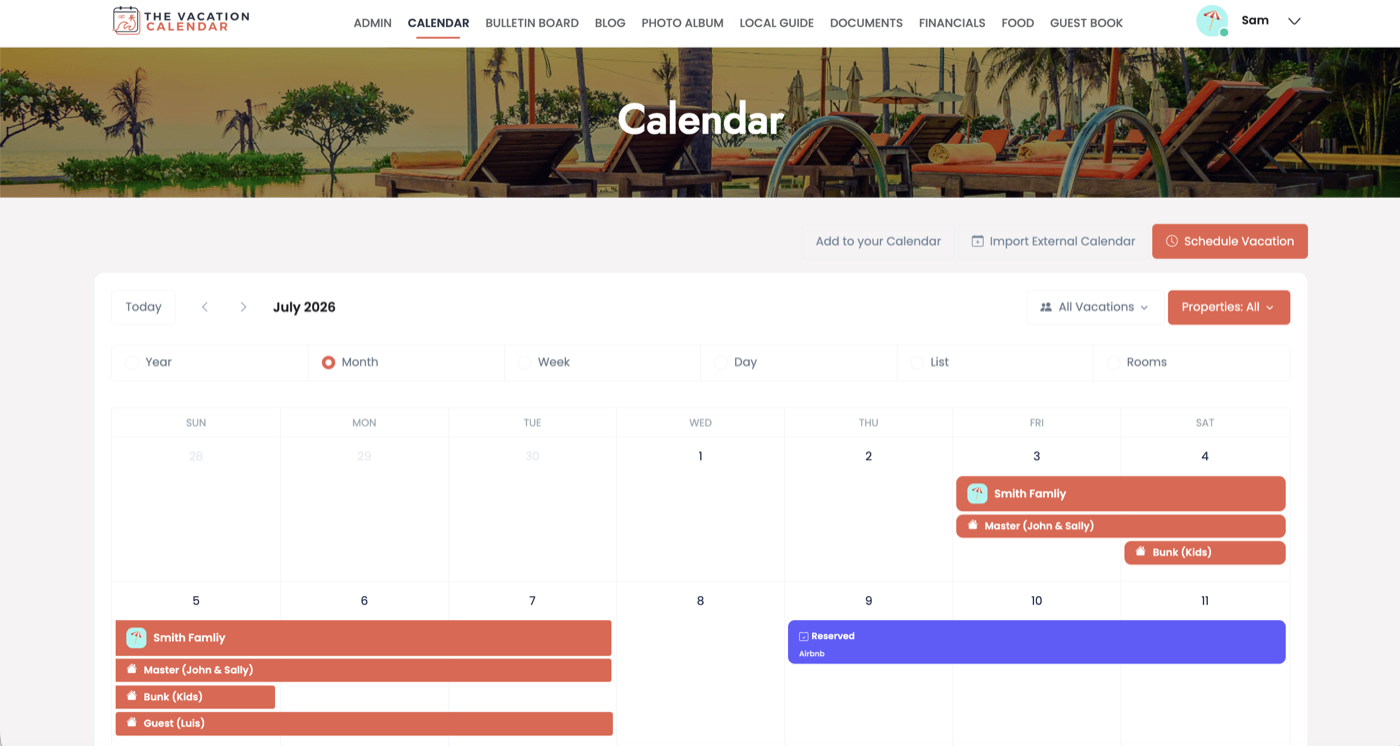
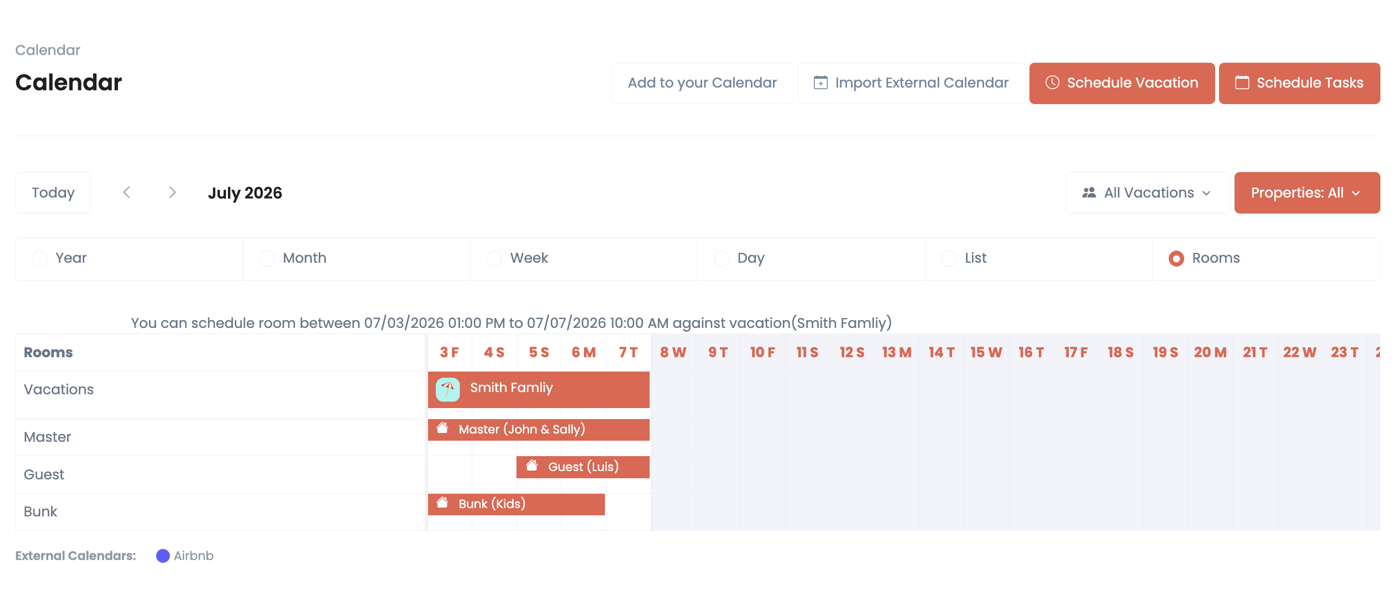
Press Rooms above the calendar and the grid rearranges itself: one row per room, running across the dates, showing who has each one and when.
This is the view for the week itself rather than the season. Open it on the drive down and you know which room is yours. Open it before a big holiday and you can see the gap in the bunk room that two more children would fit into. Open it on a changeover day and you can see precisely which beds need fresh sheets by lunchtime.
It sits alongside Year, Month, Week, Day and List, all of which are described in Calendar views & filters.
Common questions
Related topics
Still stuck?
Send us a note with your house name and a real person will answer. Short video walkthroughs are on our YouTube playlist.


