Plans, billing & PayPal
Basic, Standard and Premium compared, free trials, how PayPal billing works, upgrading, downgrading, canceling and refunds.
The three plans
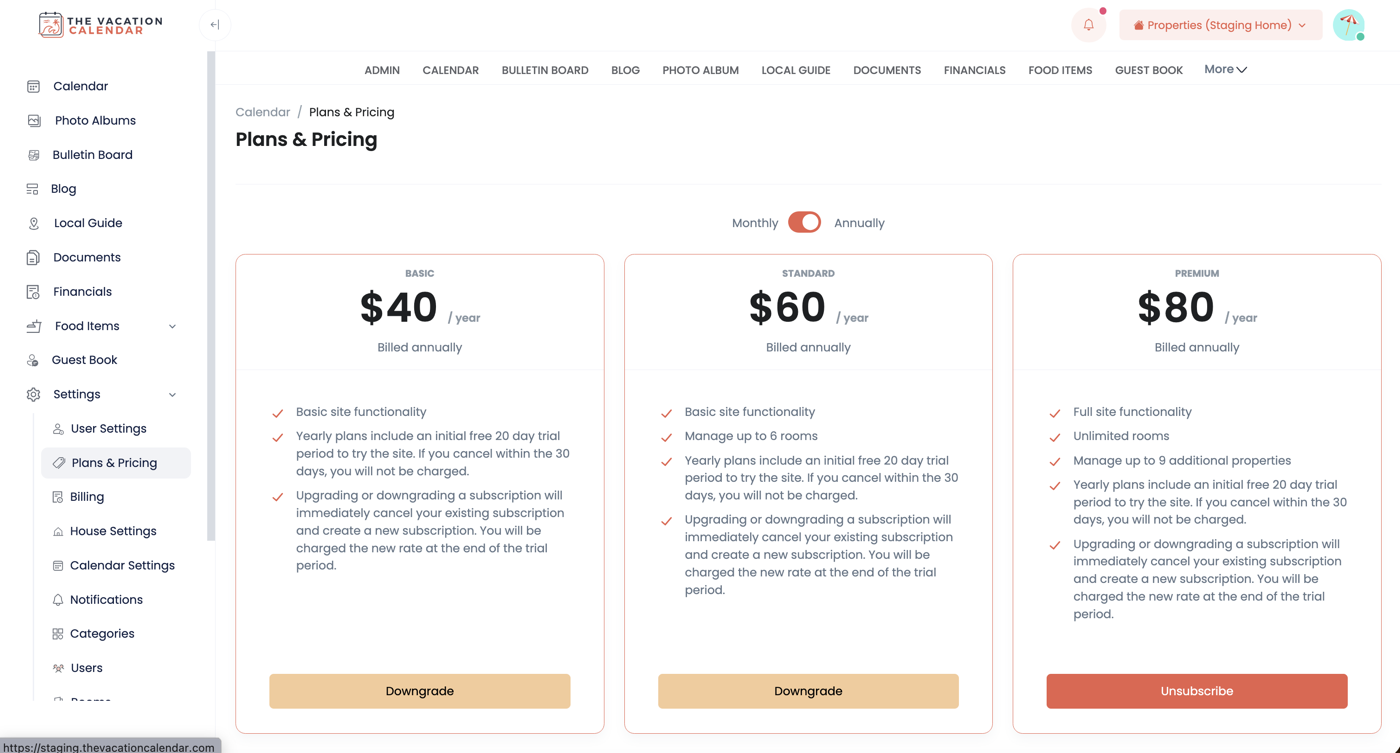
The pricing is deliberately boring, which is the nicest thing you can say about pricing. There are three plans, every one of them includes the whole site, and the only differences are rooms and extra properties. Nobody pays per user, and no feature is held back to make you upgrade.
| Basic | Standard | Premium | |
|---|---|---|---|
| Monthly | $5 | $7 | $9 |
| Annual | $40 | $60 | $80 |
| Calendar, approvals and calendar rules | Yes | Yes | Yes |
| Bulletin board, blog, photo albums, local guide | Yes | Yes | Yes |
| Food lists, guest book, documents | Yes | Yes | Yes |
| Financials and reports | Yes | Yes | Yes |
| Calendar import and export, date formats, mobile app | Yes | Yes | Yes |
| Booking rooms | — | Up to 6 | Unlimited |
| Additional properties | — | — | Up to 9 |
So the choice comes down to two questions. Do you assign bedrooms to families rather than just weeks to families? Then you want room booking, which means Standard or Premium. Do you share more than one place? Then you want additional properties, which means Premium.
If neither applies, Basic is the plan, and it is the full site. At $40 a year it costs less than one argument about the Fourth of July.
Prices and features are on the public Pricing page, and inside the site at Admin → Settings → Plans & Pricing. Billing pages are for the primary Administrator — the person whose account holds the subscription — and not for Schedulers or other Administrators.
Free trials and when you are charged
Every new subscription starts with a free trial, and the annual plans get a longer one:
- Monthly plans — 7 days.
- Annual plans — 20 days.
Cancel at any point inside the trial and you are not charged a cent. Nothing is taken up front, so there is nothing to claim back.
Twenty days is enough to do this properly: add the family, set your calendar rules, let everybody book their week, and see whether the arguing stops. That is the real test, and it is not one you can run in an afternoon by yourself.
Trial the site in the quiet months, when there is time to add everyone and set it up. Starting the week before the summer schedule is decided is how a good idea becomes one more thing to do.
How PayPal billing works
Subscriptions are handled by PayPal. You are charged at the start of each billing cycle — the same day each month for a monthly plan, the anniversary date for an annual one — and the charge comes out of your PayPal account automatically.
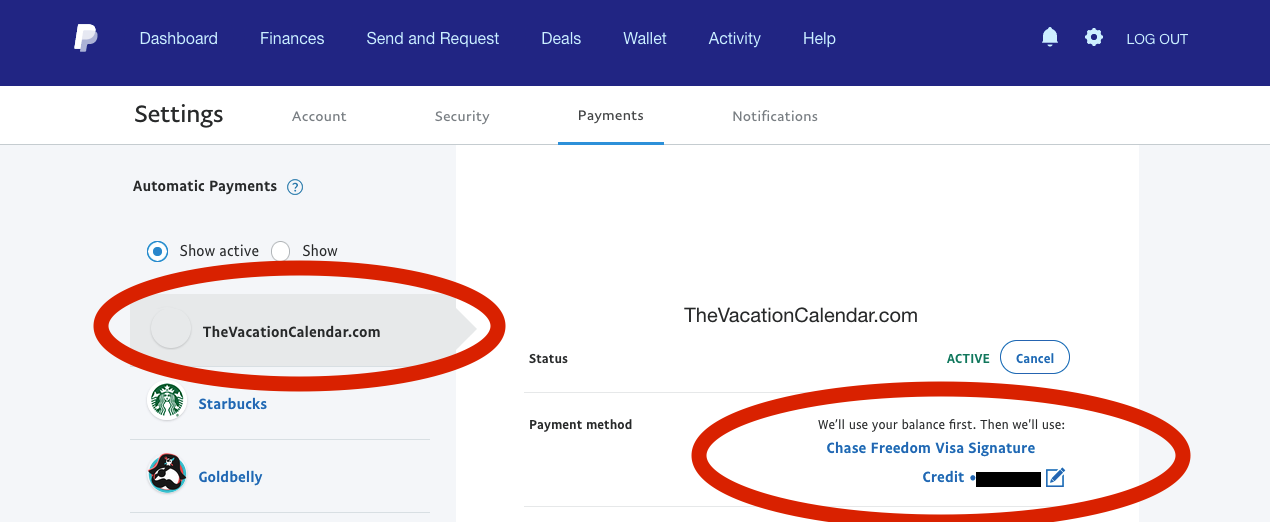
Which means the one thing worth checking is that PayPal can actually take the money. In PayPal, go to Settings → Payments → Automatic Payments, find TheVacationCalendar.com in the list, and make sure the status is active and the payment method behind it is a card that has not expired.
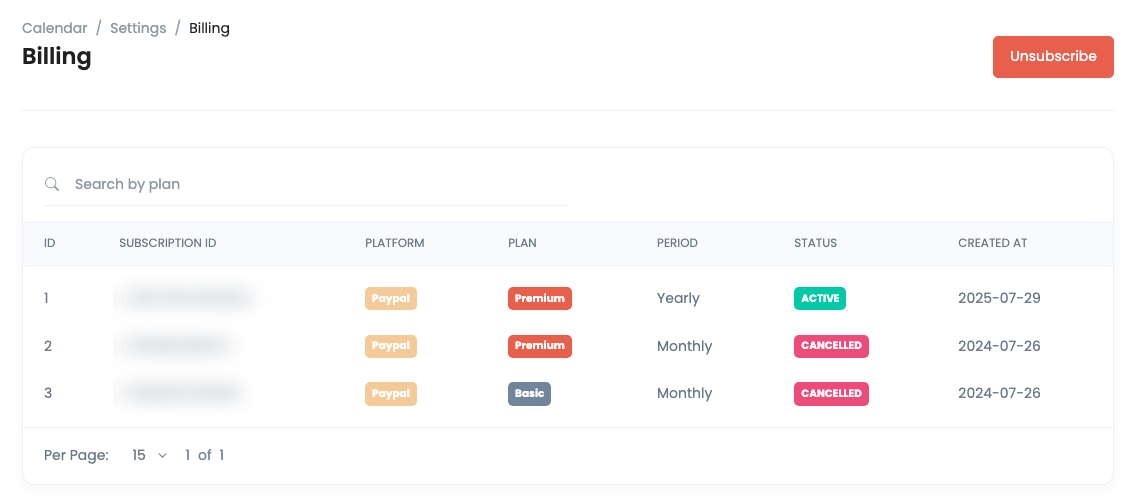
Inside the site, Admin → Settings → Billing is your record: every subscription, its plan, whether it is monthly or yearly, its status and when it started. It is where you look when somebody asks what the house actually pays.
Occasionally the handover to PayPal does not complete and the site reports that you cannot subscribe at this time, or your subscription has lapsed. Log in to your existing account using your house link, then go to Admin → Settings → Plans & Pricing and choose a plan — any tier, monthly or annual. If subscribing again does not work, email support@thevacationcalendar.com with your house name and somebody will sort it out.
Older videos say "Owner" where the site now says "Scheduler". Same role, new name.
Upgrading and downgrading
You can move between plans whenever you like from Plans & Pricing, and it is worth understanding what actually happens, because it is not a simple price adjustment.
Changing plan immediately cancels your existing subscription and starts a brand new one, with a brand new trial period. You are charged the new rate when that trial ends. So an upgrade is not billed today, and a downgrade does not refund today — it is a fresh subscription, beginning now.
If you are on an annual plan and change tier partway through the year, you may be owed money back. That is what the refund schedule below is for.
Canceling
The red Unsubscribe button sits in the top right of the Billing page. Press it, confirm in the dialog that appears, and the subscription ends.
PayPal cannot schedule a cancellation for the end of a billing cycle, so unsubscribing stops the subscription immediately rather than at renewal. If you want the full period you have paid for, cancel near the end of it — and set a reminder a week before renewal so the date does not slip past you.
When a subscription lapses or ends, the site does not vanish quietly. Schedulers and Guests see a No Active Subscription note naming the Administrator to speak to, and the Administrator gets a link straight to Plans & Pricing. Nobody is left guessing why the calendar stopped.
Refund schedule
Change tier partway through an annual plan and you can claim a prorated refund. Email support@thevacationcalendar.com with your house name and say which change you made. Refunds are paid within 14 days.
The amount depends on how far into the annual term you were, and how many tiers you moved:
| Month of your annual term | One-tier change | Two-tier change |
|---|---|---|
| 1 | $20 | $40 |
| 2 | $18 | $36 |
| 3 | $16 | $32 |
| 4 | $14 | $28 |
| 5 | $12 | $24 |
| 6 | $10 | $20 |
| 7 | $8 | $16 |
| 8 | $6 | $12 |
| 9 | $4 | $8 |
| 10 | $2 | $4 |
| 11 and 12 | No refund | No refund |
A one-tier change is Basic to Standard, or Standard to Premium. A two-tier change is Basic to Premium. The schedule applies to annual plans; monthly plans are short enough that there is nothing meaningful to prorate.
The full Billing & Refund Policy is here.
Common questions
Related topics
Still stuck?
Send us a note with your house name and a real person will answer. Short video walkthroughs are on our YouTube playlist.


