The mobile appNEW
The Vacation Calendar for iPhone and Android: the calendar, photos, blog, local guide, food lists, expenses and approvals in your pocket.
Getting the app
The house is not where your phone is not. That is the whole argument for the app: the receipt is in your hand at the hardware store, the photo is on your phone at the beach, and the question "is anybody there next weekend?" arrives while you are standing in somebody's kitchen.
The Vacation Calendar is free, included on every plan, and available for iPhone and Android.


Search the store for The Vacation Calendar if you would rather not follow a link, and look for the red-and-white umbrella.
The fastest way to get a family onto the app is to text both links to everyone at once, with the house name and "you already have a login for this". People install things their cousin sent them; they do not install things they have to go and find.
Logging in on the app
There is nothing new to set up. The app uses the same account you already have: the same house name, the same username or email, the same password and the same role.
- Open the app and find your house by name, the same way the website asks you to.
- Sign in with your username or email address and your password.
- That is it. The app remembers you, so this is a once-per-phone job.
Administrators, Schedulers and Guests all sign in, and each role can do in the app what that role can do on the website. Guests use the shared guest password, exactly as they would in a browser. If somebody has forgotten theirs, an Administrator can re-send their details from the Users page — see Users and guest access.
On a Premium account with more than one property, log in to the primary house as usual; additional houses have no separate login here either.
What you can do in the app
The app is not a cut-down viewer. Almost everything the family does day to day is in it:
| Part of the site | In the app you can |
|---|---|
| Calendar | Add, edit and delete vacations, book rooms, and — if you are an Administrator — approve or reject requests. |
| Bulletin board | Read the house rules, the Wi-Fi password and the arrival instructions. Reading is the point; posting stays on the website. |
| Blog | Write posts, like them and comment on them. |
| Photo albums | Upload photos straight from your camera roll into albums that already exist. |
| Local guide | Add places, leave reviews, and open an entry in your phone's maps app for directions. |
| Food and shopping lists | Add and check off items, which is the feature most likely to be used in an actual grocery aisle. |
| Guest book | Sign it, using the camera for the photo. |
| Financials | Add expenses and income, receipt photographed at the counter. |
| Calendar feeds | Manage the external calendar feeds that pull in Airbnb and VRBO bookings. |
| Notifications | See what has happened on the house calendar, and mark items as read. |
| Profile | Edit your own details. |
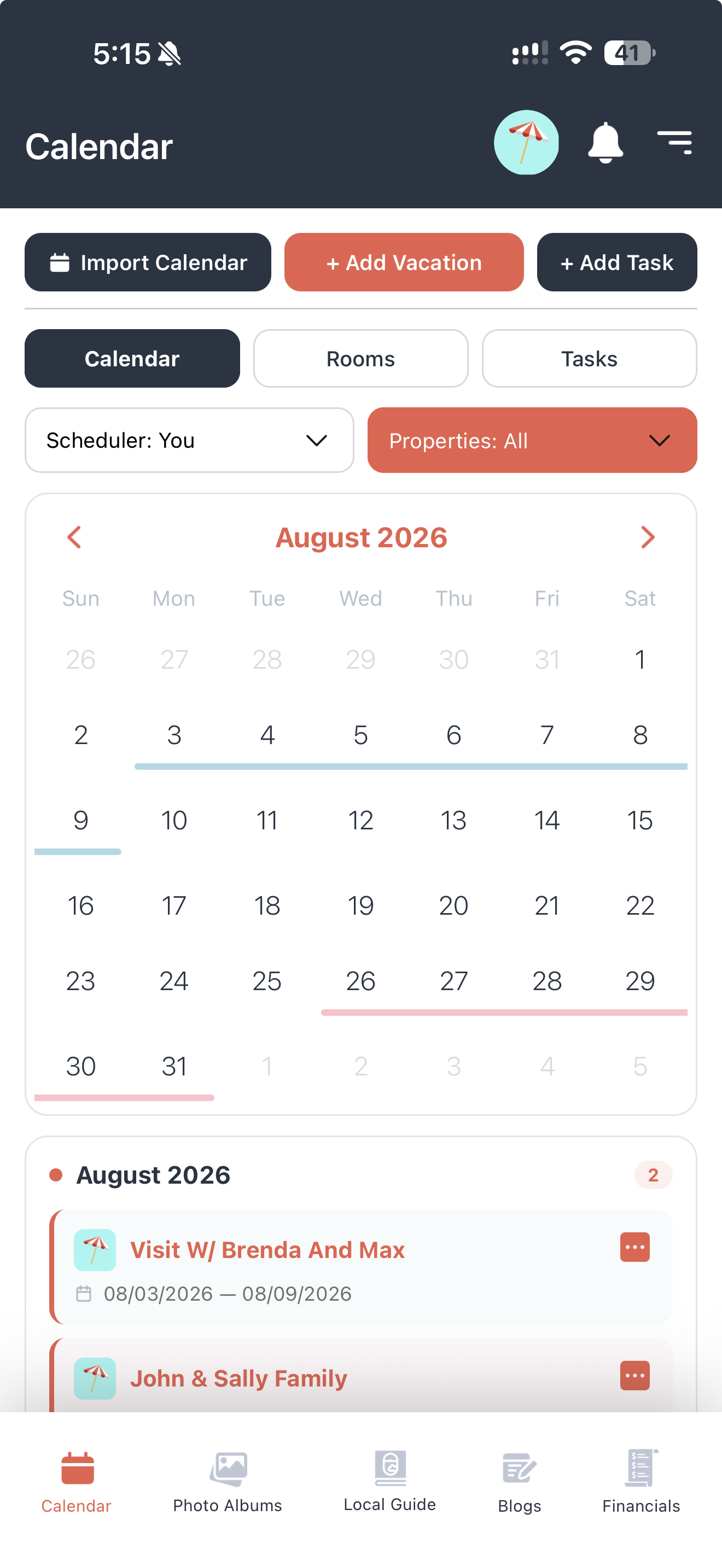
A handful of things stay on the website, and they are the ones you do once rather than weekly:
- Calendar Settings — scheduling windows, vacation length, overlap rules. See Calendar rules.
- Users — adding people, sending login details, the guest password.
- Notification lists — the eight distribution lists in Notifications.
- Documents — uploading files.
- Billing — plans, PayPal and everything in Plans, billing and PayPal.
That split is deliberate. Setup is a job for a keyboard and a cup of coffee. Booking a week, adding a photo and remembering the paper towels are jobs for a phone.
Photograph receipts into Financials while you are still standing at the register. The shoebox method has a success rate of roughly zero, and the app takes about fifteen seconds.
Common questions
Related topics
Still stuck?
Send us a note with your house name and a real person will answer. Short video walkthroughs are on our YouTube playlist.


