Financials: income & expensesNEW
Log expenses with receipts, record rental income, sort everything into categories, and export month, quarter or year reports to CSV.
Retire the spreadsheet
Sharing a vacation home means sharing the bills. One person pays the propane, another pays the plow guy, a third buys the mattress nobody wanted to discuss. Someone starts a spreadsheet in March, three people have a copy of it by June, and the "who paid for what" file never survives the summer.
Financials is where that ends: one shared running record of what the house spent and took in, with the receipt attached to the expense it belongs to. When the question comes up at Thanksgiving, the answer takes ten seconds instead of an evening.
Be clear about what it does not do: Financials records and reports. It does not divide bills between families, keep a budget or work out who owes whom. What it gives you is an honest, shared, year-by-year picture.
Opening Financials
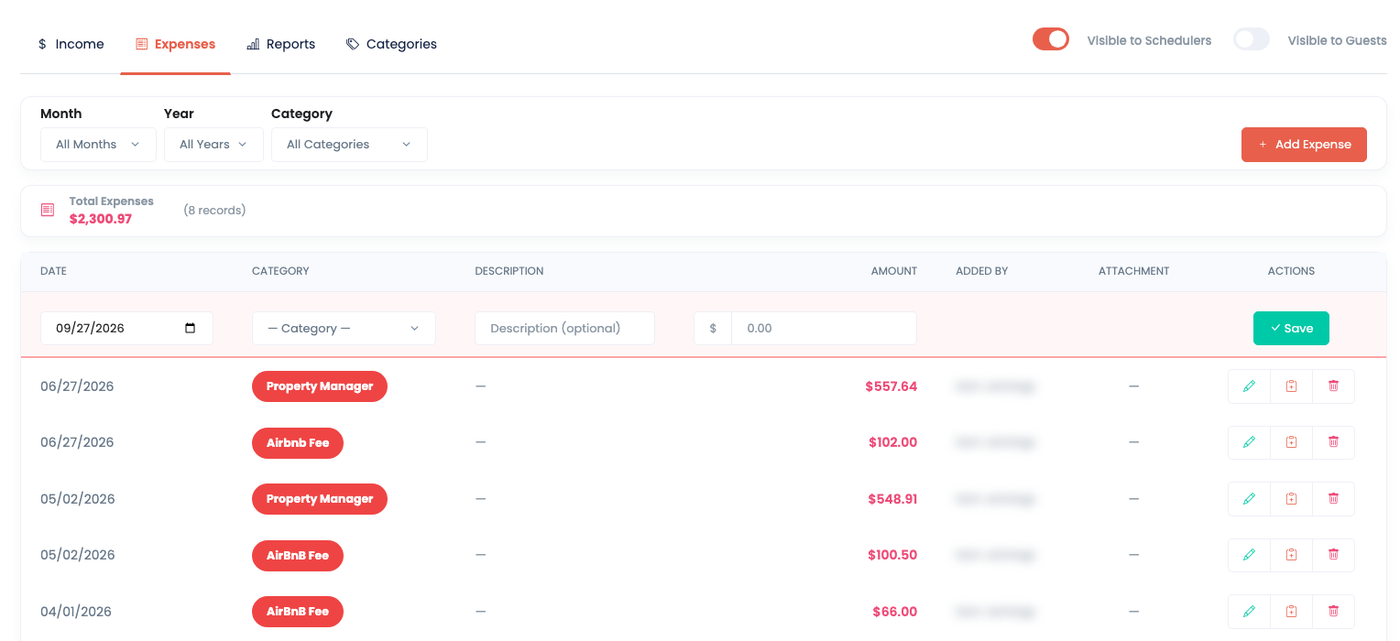
Click FINANCIALS in the top menu. The page is called Income & Expenses, and the tabs at the top right move between its parts:
- Income — everything the house took in.
- Expenses — everything the house paid out.
- Reports — the two of them added up, by month, quarter or year.
- Categories — the labels you sort entries into. Administrators only.
Whichever list you are on, Total Income and Total Expenses sit at the top and update as you filter, so you always have a running total of what is on screen. Below them, the All Months and All Years menus and the category filter narrow the list, and the page size setting shows 25, 50, 100 or 200 rows. Dates follow the style your house chose under Date & Time Format.
Expenses are much easier to enter at the hardware store than at the kitchen table in October. The mobile app adds income and expenses too, so you can photograph the receipt while you are still at the counter.
Adding an expense
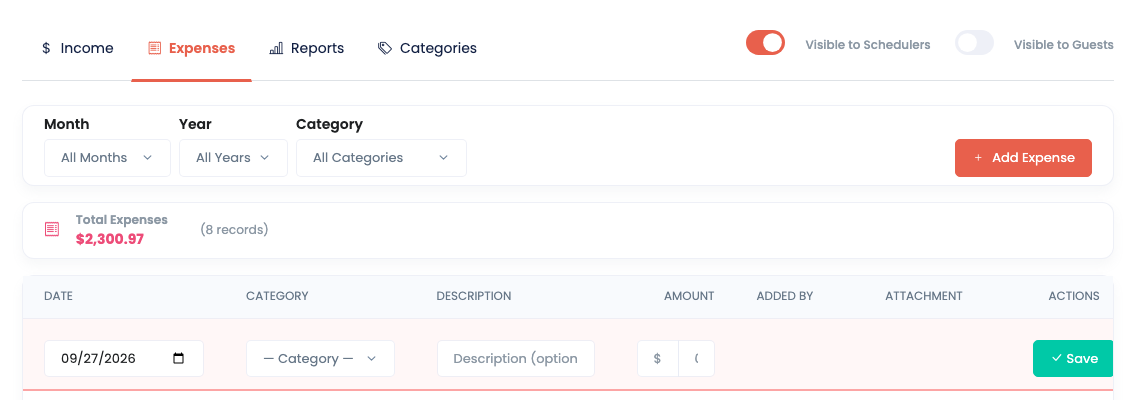
Open the Expenses tab and press Add Expense.
- Date — the day the money went out, not the day you typed it in.
- Category — one of your house's expense categories, such as Maintenance, Cleaning or Fees.
- Amount — what it cost.
- Notes / Description — a short note, which appears in the Description column of the list. "Dishwasher repair, second call" beats "repair" when you read it back in eighteen months.
- Attachment — optional, and the part everyone is glad of later. A photo of the receipt or a PDF invoice stays with the expense.
Save, and the entry appears with your name against it. There is a quick-add row too, for the days when you have six receipts and no patience for six forms, and entries can be edited or deleted from the buttons at the end of each row.
A receipt attached to its expense is findable. The same receipt in Documents is one of thirty files called scan_0043. Keep Documents for the insurance policy and the septic map.
Recording income
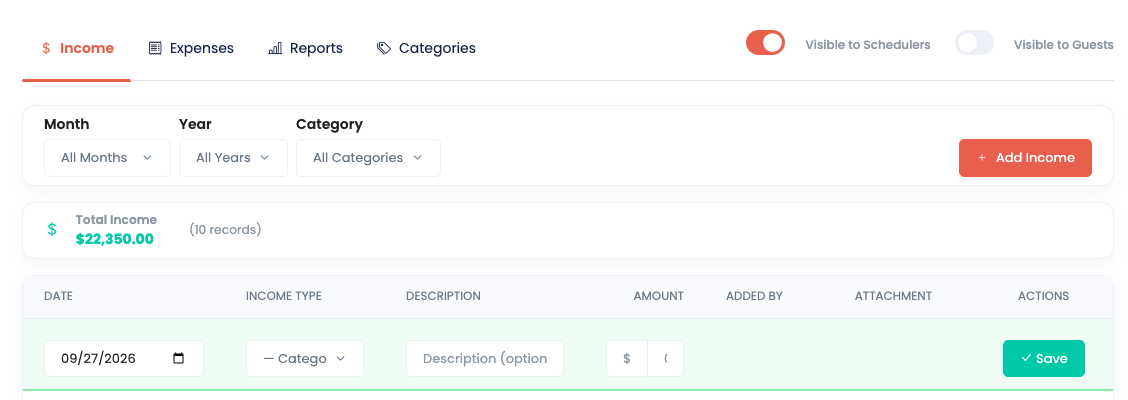
The Income tab works the same way, with an Add Income button and the same five fields. What goes in it depends on how your house runs:
- Rental income — the weeks you let out, through a listing site or a friend of a friend.
- Contributions — the annual amount each family pays in, or the collection everyone chipped into for the new roof.
- Anything else the house takes in — a deposit kept, an insurance payout, the neighbor who parks a boat on the lower lot.
Income is the half people skip, and skipping it is what makes the house look like a money pit. A year of expenses on its own is bad news; the same expenses with the rental weeks beside them is a business.
Categories
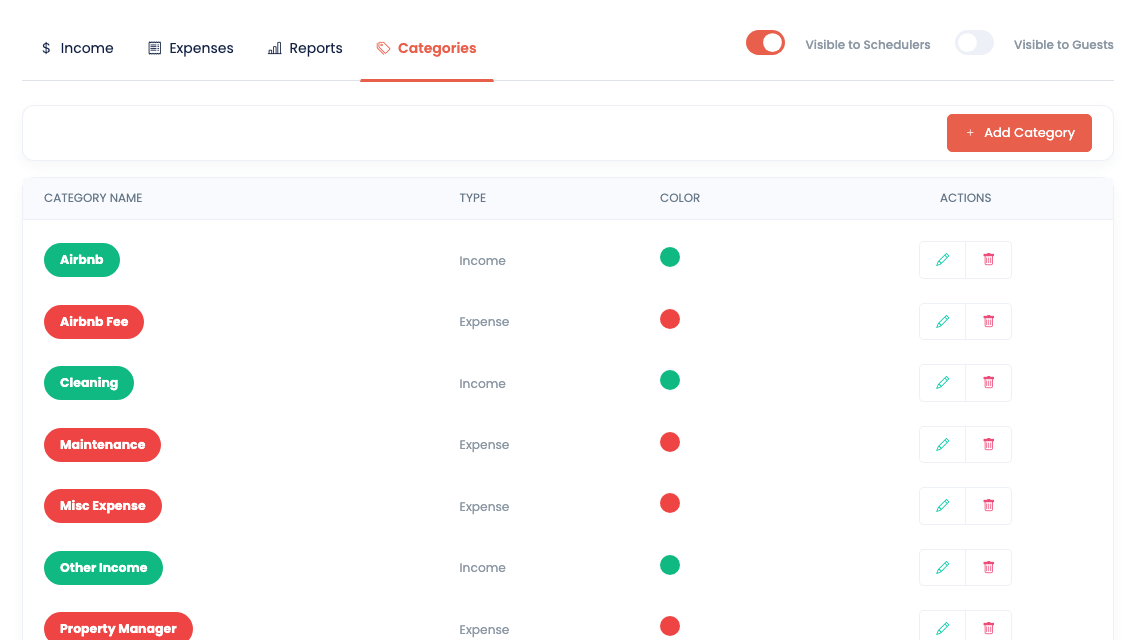
Categories are the labels that turn a list of amounts into a report worth reading. Each belongs to your house, is typed as either income or expense, and carries a color so the list is readable at a glance.
Administrators set them up on the Categories tab of the Income & Expenses page itself. They are not in Settings → Categories, which is a different list, for the blog, the bulletin board and the local guide — go looking there for Maintenance and Cleaning and you will not find them.
Most houses need fewer categories than they expect. Maintenance, Cleaning, Utilities, Taxes & Insurance, Supplies and Fees on the expense side, with Rental and Contributions on the income side, covers almost everything.
Agree the list before anyone starts entering, because recategorizing a year of entries is nobody's favorite evening. Five categories everyone uses consistently tell you more than twenty that each person reads differently.
Reports and CSV export
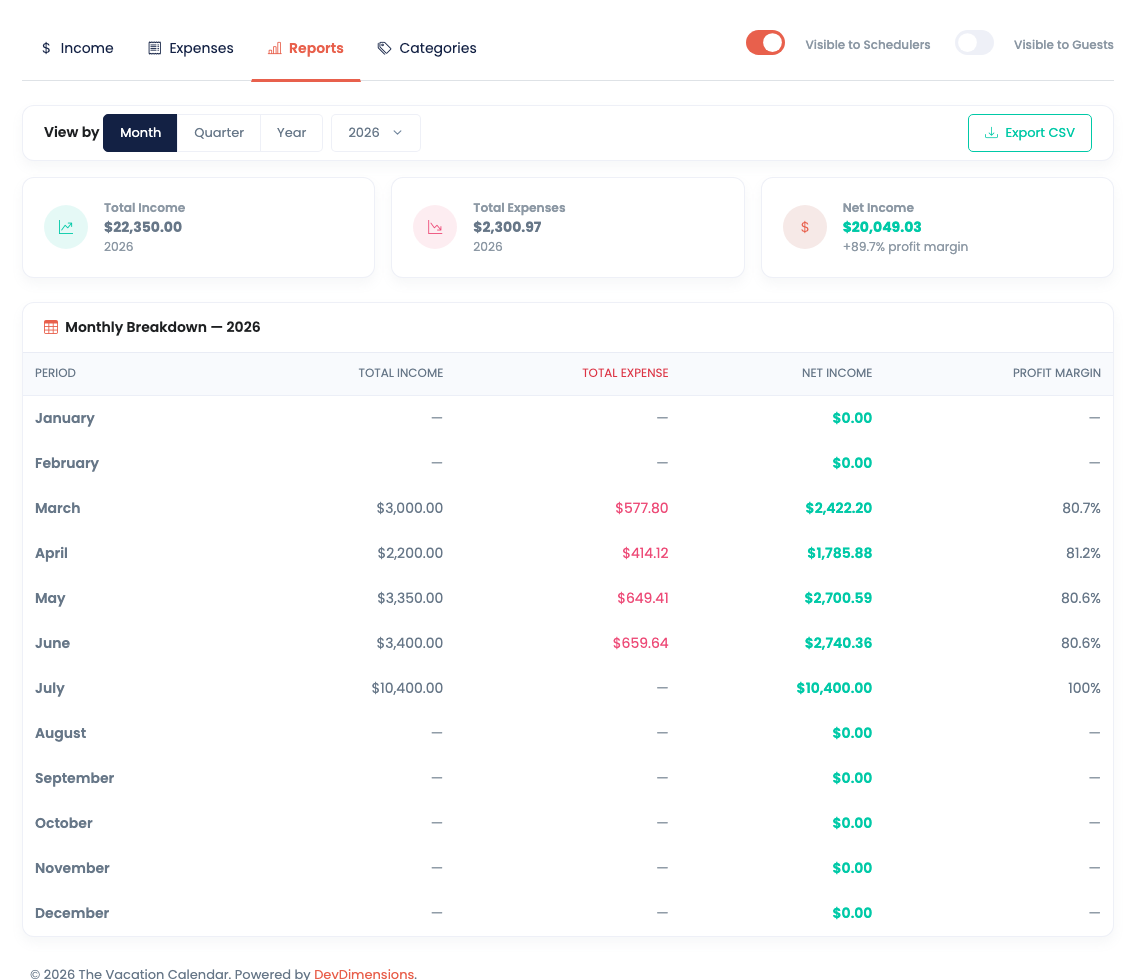
The Reports tab is where the entries become an answer. Choose View by Month, Quarter or Year, pick the year, and the period is summed up in three cards — Total Income, Total Expenses and Net Income, with the profit margin under the net figure:
| Total Income | Everything on the Income tab for the period. |
|---|---|
| Total Expenses | Everything on the Expenses tab for the period. |
| Net Income | Income minus expenses. Green is a good year. |
| Profit Margin | Shown under Net Income: the net as a percentage of income, for houses that rent. |
Underneath, a breakdown table repeats all four figures for each month, quarter or year in the view — which is how you discover the house is fine in July and expensive in February.
Export CSV downloads exactly what you are looking at — the file to send the family before the annual meeting, or to whoever does the taxes.
Who can see what
Money is the one part of the site where people want to know exactly who is looking:
| Role | What they can do |
|---|---|
| Administrator | Sees every entry from everybody, adds, edits and deletes, manages categories, and runs reports and exports for the whole house. |
| Scheduler | Adds entries and sees, edits and deletes only their own. Can open the Reports tab and export a CSV, but both cover only their own entries; only Administrators see the whole house. |
| Guest | Can only look, and only if an Administrator has switched on Visible to Guests. |
Two switches control the audience. They sit to the right of the tab row at the top of the Income & Expenses page, where only Administrators see them. Visible to Schedulers starts on, which is what you want: the people who book weeks can log what they spend. Visible to Guests starts off, and should usually stay off, because everyone with the shared Guest password would see the numbers.
Financials only works if everyone puts their receipts in the same place. If half the family is still emailing a spreadsheet around, the totals here are wrong and worse than useless. Pick a start date, tell everyone, and begin the year clean.
Common questions
Related topics
Still stuck?
Send us a note with your house name and a real person will answer. Short video walkthroughs are on our YouTube playlist.


