Guest book
Let visitors leave a note and a selfie. Entries wait for the Administrator to approve them before anyone sees them.
Older videos say "Owner" where the site now says "Scheduler". Same role, new name.
Why a guest book
There is a reason hotels and rental cottages have kept a book by the door for two hundred years. People like to leave a mark, and the family that shares the house likes reading those notes even more, usually years later on a rainy afternoon.
The online version has two advantages over the leather-bound one in the hallway. It does not get lost, coffee-stained or filled with a four-year-old's drawings. And the whole family can read it without being at the house, so the entry your friends wrote in August is something your brother in Denver can enjoy in September.
It is also quietly useful. A stack of warm notes from people who have stayed is a good answer to "should we keep renting it out?", and it reminds everyone why the house is worth the shared effort.

Signing the guest book
Anyone who can reach the house site can sign, which is the whole point. Send visitors the link and the Guest password before they leave and most of them will.
- Open Guest Book from the top menu and scroll to the form.
- Type your Name, the way you would sign a card.
- Give the entry a Title. It is the heading on the card, so "Best week of the summer" reads better than "Thanks".
- Add a photo if you have one — the form asks you to Upload a selfie from your visit, and a picture on the porch makes the entry ten times better. It is optional.
- Write the Content. A few sentences is plenty: what you did, what you loved, the thing you will remember.
- Press SEND.
A message then tells you the entry will appear once it has been approved. Nothing is wrong and nothing has been lost; it is simply waiting for an Administrator to look at it. Everyone on the New guest book item distribution list gets an email at that point, so somebody knows there is something to review. See Notifications & emails.
Ask people to sign on the last morning, before the drive home. Sent a week later, the email gets read and never answered, and the house never hears what they thought of it.
Approving entries
New entries are held back until an Administrator approves them, and that is deliberate. Your house shares one Guest password among family, friends, renters and the neighbors who feed the cat, so the guest book form is the one place on the site where almost anyone can write something that everyone else would see. Approval keeps the wrong thing from appearing on the page in front of the family.
In practice it takes seconds:
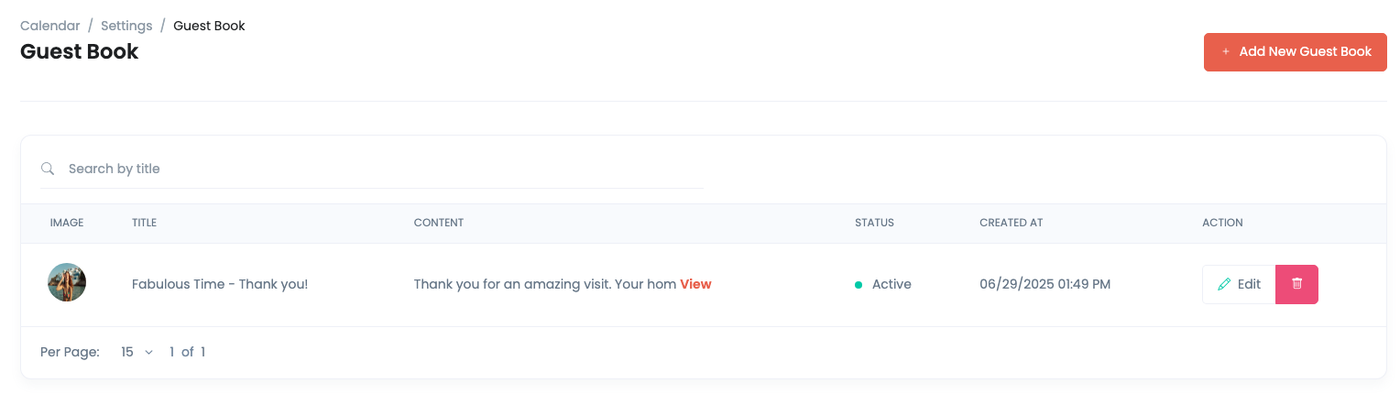
- Go to Admin → Guest Book. Every entry is listed, whether or not it has been approved.
- Press Edit on the entry you are dealing with.
- Set it to Active to publish it, or InActive to keep it hidden.
- Press Update Guest Book.
An Active entry appears on the Guest Book page right away, photo and all. The writer is not emailed when you approve, so if it matters to them, tell them.
Nothing else on the site reminds you that entries are waiting, so make the email your cue and clear the queue when it arrives. An unapproved guest book is a guest book nobody signs twice.
Hiding and deleting entries
The Active and InActive setting works in both directions. An entry that is live can be switched back to InActive at any time, which hides it from the page without throwing it away, and you can switch it back again later. That is the right tool for something that is merely awkward, or for an entry you want to check a detail in before it stays up.
Deleting is the other option, and it is permanent: the entry and its photo are gone, with no way to get them back. Keep it for the entries that are genuine junk, such as spam or a test somebody left during setup.
You can also edit an entry rather than hiding it. Fixing a misspelled name or trimming a stray paragraph is fine and nobody will mind. Rewriting what a guest said about their stay is a different matter, and a guest book that has been edited into blandness is not worth keeping.
Entries you want to keep forever are worth copying somewhere more permanent too. A screenshot in a photo album, or the best of them gathered into a blog post at the end of the season, is a nice tradition.
Common questions
Related topics
Still stuck?
Send us a note with your house name and a real person will answer. Short video walkthroughs are on our YouTube playlist.


