Administrator setup checklist
Ten minutes of setup that makes the site run itself: users, notifications, categories, albums, house rules and calendar rules.
Older videos say "Owner" where the site now says "Scheduler". Same role, new name.
Before you start
Congratulations — you are the Administrator, which mostly means you are the person everyone will text when they cannot remember the Wi-Fi password. The good news is that ten minutes of setup now saves you that text message for years.
Before you begin, find the welcome email that arrived when your account was created. It contains your house link: the address that takes your family straight to your house's login page without hunting for the house name. Keep that email open in another tab — the first job on the list needs it.
Everything below lives under Admin in the top navigation. You do not have to finish in one sitting, and nothing here is permanent; every setting can be changed later. But the ten steps are in this order because each one makes the next one easier.
Add a couple of real vacations before you invite anyone. A calendar with plans on it makes far more sense to the family than an empty one.
The checklist
- Bookmark your house link and share it. It is in your welcome email. Bookmark it, then send it to everyone who will use the site. It skips the house search, so nobody has to remember the house name. See Logging in & your house link.
- Add your people. Go to Settings → Users → Add New User and create a Scheduler account for every family member who will book the house. Set Send Email to Yes so they get their login details right away. On the same page, set the shared Guest password for everyone who only needs to look. Full detail in Users & guest access.
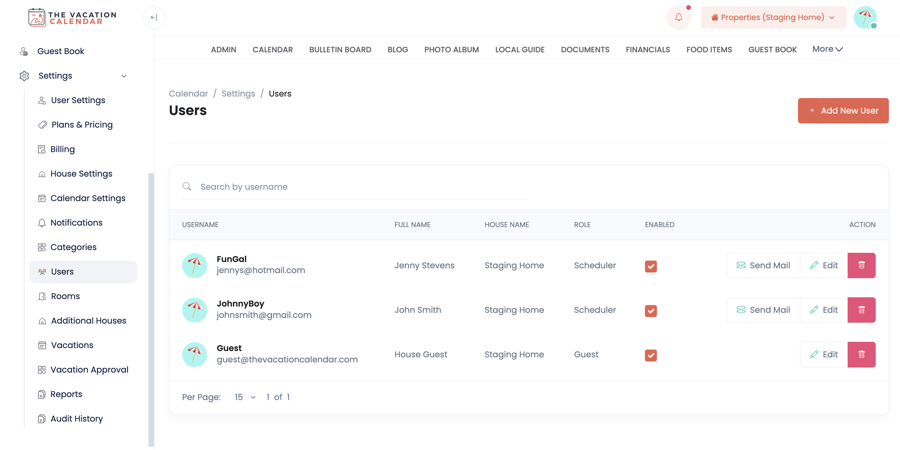
One Scheduler account per family member, plus the shared Guest password. - Put yourself on the email lists. Open Settings → Notifications and add your own email address to the Changes to calendar and Vacation approval lists. Administrators are not added automatically, and an approval request nobody sees is a family argument waiting to happen. See Notifications & emails.
- Create your categories. In Settings → Categories, set up categories for Blog, Bulletins and LocalGuide. Two minutes now keeps the bulletin board and the blog tidy forever; do it later and you will be re-filing posts. See House settings.
- Write the welcome post. Go to Admin → Bulletin Board and post three things: a welcome note, the Wi-Fi network and password, and the house rules. This one post answers most of the questions you would otherwise answer by phone. See Bulletin board.
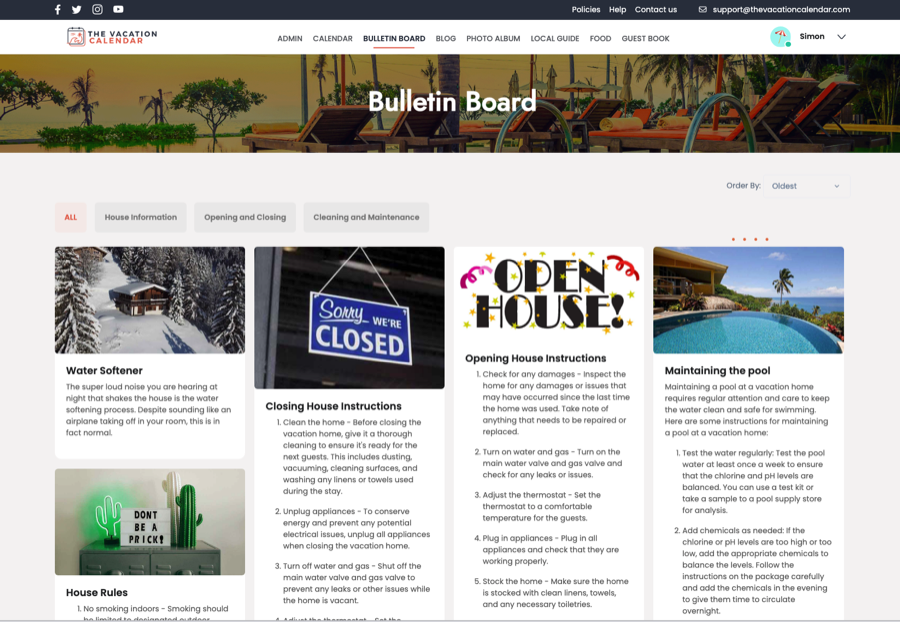
The bulletin board is where the Wi-Fi password stops being a phone call. - Create your photo albums. In Photo Albums, choose Add New Album and make a few — one per year or one per trip works well. An empty gallery invites nothing; two albums invite everyone to add theirs. See Photo albums.
- Decide the calendar rules. This is the one that keeps the peace. In Calendar Settings you choose the Scheduling Window (how far ahead people can book), the maximum Vacation Length, whether vacations may overlap, whether bookings need your approval, and the default check-in and check-out times. See Calendar rules and Vacation approvals.
- Make the site look like your house. In House Settings, pick your date and time format, upload a house image for the header and a login image for the front door. It takes five minutes and it is the difference between a tool and your family's website. See House settings.
- Add your next vacation. Put a real trip on the calendar. It proves the rules you just set behave the way you expected, and it gives everyone something to look at. See Scheduling a vacation.
- Get the app. Download The Vacation Calendar for iPhone or Android, and tell the family to do the same. Approving a request from the grocery store queue is the moment this stops feeling like admin. See The mobile app.
Nothing here is locked in. Scheduling windows, approvals, categories and passwords can all be changed at any time, so make a decision, watch how your family uses it for a season, and adjust.
What to do next
With the ten steps done, your house runs itself for most of the year. When you are ready for more, three things are worth a look.
- Plans, billing & PayPal — what Basic, Standard and Premium each include, how the free trial works, and how to change plan later.
- Multiple properties — if you share a second house, a cabin or a rental, Premium puts them all behind one login with a calendar each.
- Booking rooms — when two families share the house at once, let each vacation reserve specific bedrooms for specific nights.
And if you get stuck, the short videos on our playlist cover most of this in a few minutes each, or send us a note with your house name and a real person will answer.
Related topics
Still stuck?
Send us a note with your house name and a real person will answer. Short video walkthroughs are on our YouTube playlist.


