Calendar views & filters
Year, month, week, day, list and rooms views, plus filtering the calendar by person or by property.
The six views
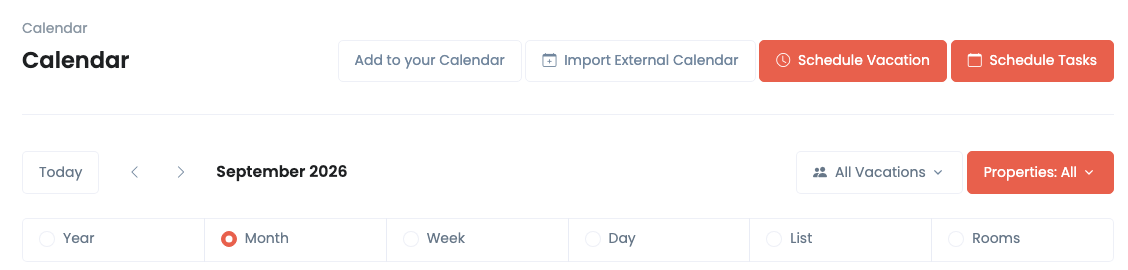
The same calendar, six ways of looking at it. The buttons sit in a row above the grid, and switching costs you nothing, so it is worth trying all of them once to find the one your family thinks in.
| View | What it is good for |
|---|---|
| Year | The whole season on one screen. This is the view for planning in January, or for spotting the three weeks in September nobody has claimed. |
| Month | The default, and the one most people live in. Color blocks across a familiar grid. |
| Week | Changeover weekends, where arrival and departure times actually matter. |
| Day | One day in detail. Useful when two families cross over and you want to see the hours. |
| List | Everything as a plain readable list of bookings and dates. The friendliest view on a phone, and the easiest to read aloud over a call. |
| Rooms | A row per bedroom showing who has it. Only appears when your house has room booking switched on. |
Next to the view buttons are the controls for moving about: arrows to step backwards and forwards, and Today to jump back to now after you have wandered off into 2029.
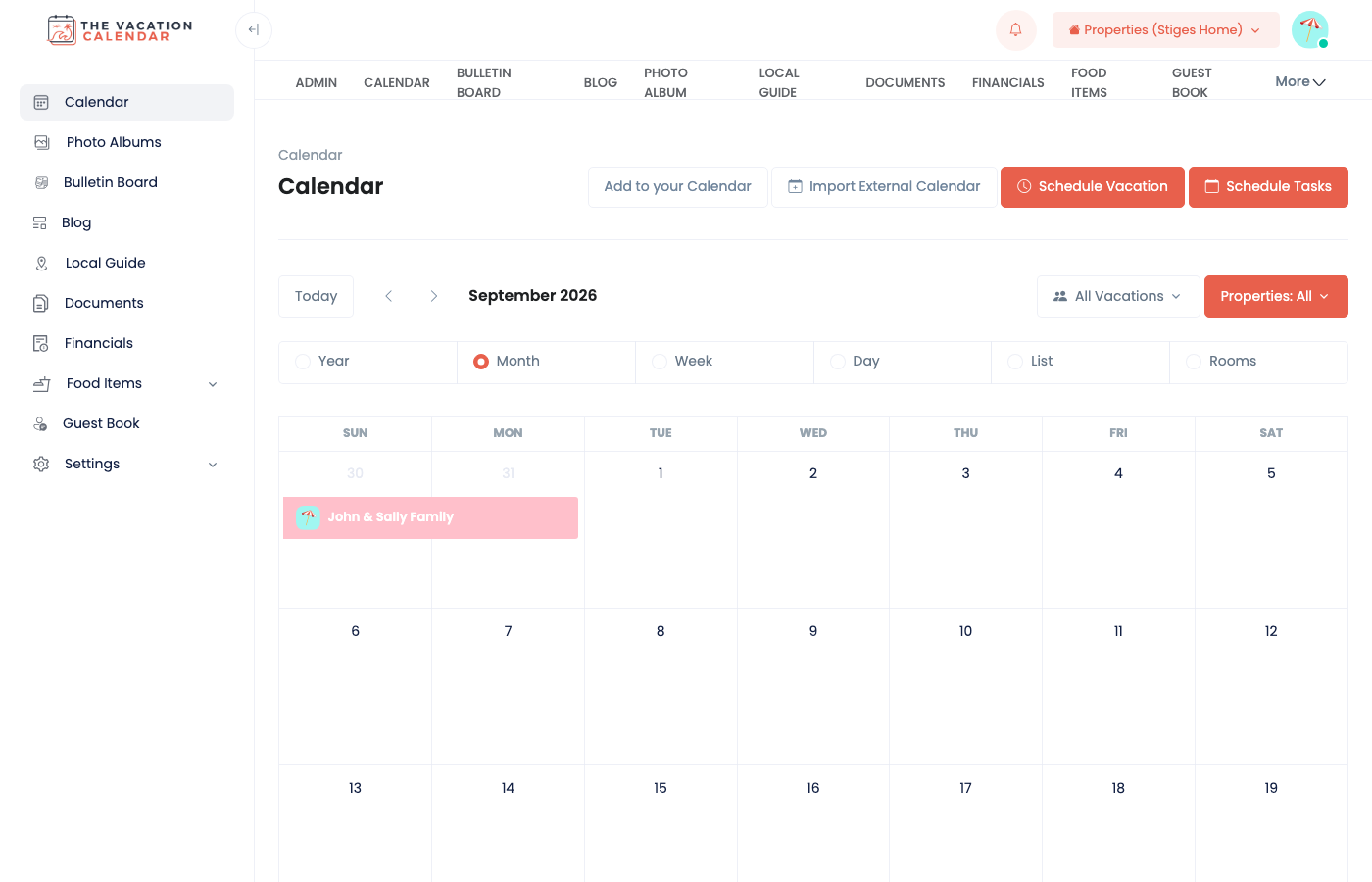
Colors carry meaning in every view. A vacation in color is confirmed; a vacation in gray is still waiting for approval, which is explained in Vacation approvals. Bookings pulled in from Airbnb, VRBO or another calendar appear in the color of their feed, with a small legend under the calendar naming each one, so you always know which entries came from outside. See Calendar import & export.
Filtering by person or property
A busy calendar with five families on it can be a lot of color at once. The filters thin it out.
The first filter is by person. Open it and you can choose:
- All Vacations, the default, everything the house has booked.
- My Vacations, just yours. The fastest way to answer "when are we going again?".
- A named Scheduler, to see one family's weeks on their own.
- Guest Vacations, for the stays booked by guests rather than by family.
Guests do not see this filter at all. They see the whole calendar, which is the point of letting them look.
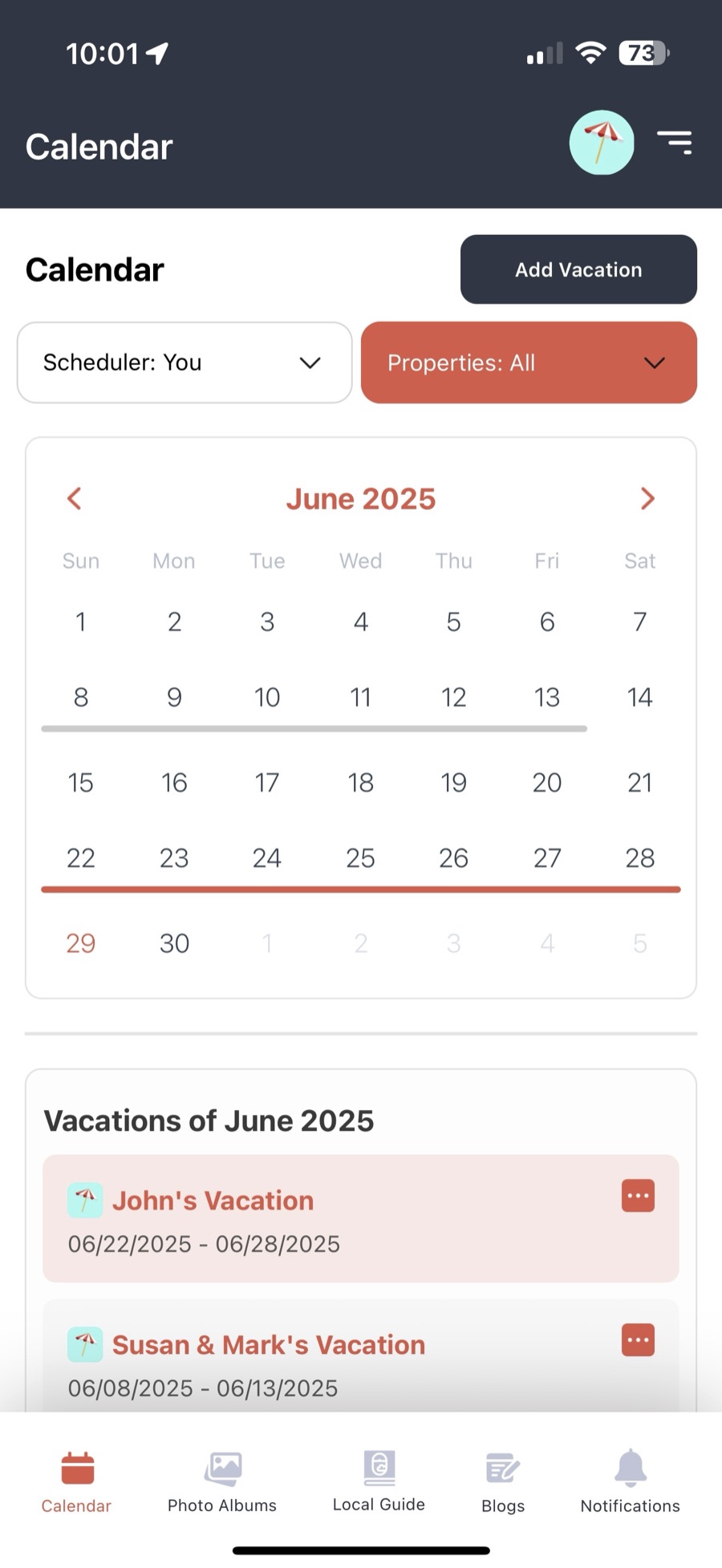
The second filter only turns up if you have more than one house. On Premium, with additional properties added, a Properties filter lets you show All of them together on one calendar or check just the ones you care about. The cabin and the beach house side by side is a genuinely useful thing to see in February, when you are working out where everybody is going. There is more in Multiple properties.
Filters only change what you are looking at. Nobody else's calendar changes, and nothing is hidden from anyone, so filter as freely as you like.
Printing
There is no print button, and there does not need to be one: print straight from your browser with Ctrl+P on Windows or Cmd+P on a Mac.
A few things make the result better:
- Switch to Month view first. It is the view that prints best by a distance; Year view squeezes and Week view sprawls.
- Set any filter you want before you print. Whatever is on screen is what comes out of the printer.
- In the print dialog, choose Landscape and turn on background graphics, so the color blocks survive onto paper.
Print the season in landscape, stick it inside a kitchen cabinet door at the house, and even the relatives who refuse to log in will know who is coming next. A PDF from the same dialog is just as good for emailing around.
Common questions
Related topics
Still stuck?
Send us a note with your house name and a real person will answer. Short video walkthroughs are on our YouTube playlist.


