Photo albums
Create nested albums by year or by trip, upload and describe photos, and let the family know when new pictures land.
Older videos say "Owner" where the site now says "Scheduler". Same role, new name.
Plan your albums first
The photo album is the part of the site nobody has to be talked into. Somebody posts twenty pictures from the Fourth of July and within an hour three cousins who have not logged in since March are looking at them.
It is also the part that gets messy fastest. Ten years of one house is a lot of sunsets, and "IMG_4471" helps nobody. So spend two minutes deciding on a shape before the first upload, and stick to it.
The shape that works for most families is a year, then a trip. Make one album called 2026, then put sub-albums inside it for Memorial Day, the Fourth of July, Labor Day and Closing Up the House. Albums nest as deep as you like, and anyone looking for the fishing trip photos from three summers ago will find them on the second click.
A few families organize by subject instead, with albums for the House, the Beach, the Boat and Wildlife. That works too, as long as everyone uses the same one. What does not work is thirty albums at the top level with names only their creator understands.
Creating an album
Administrators and Schedulers can create albums. Guests can look but not add.
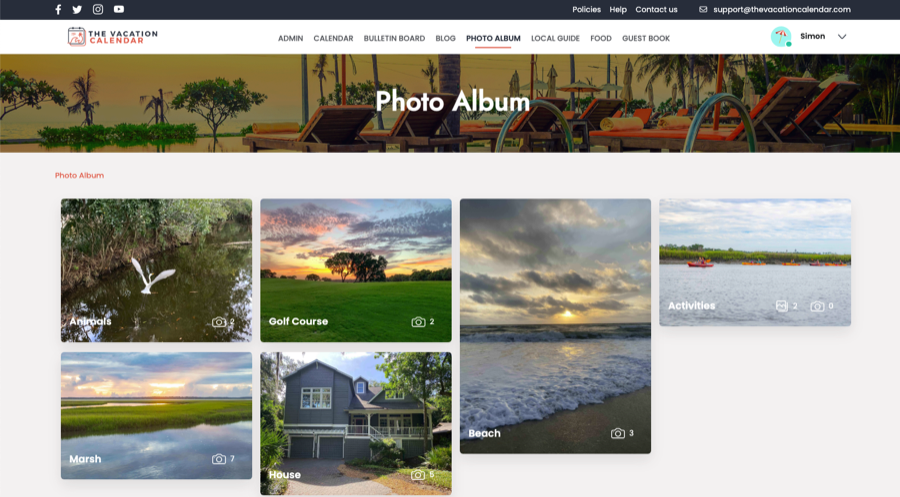
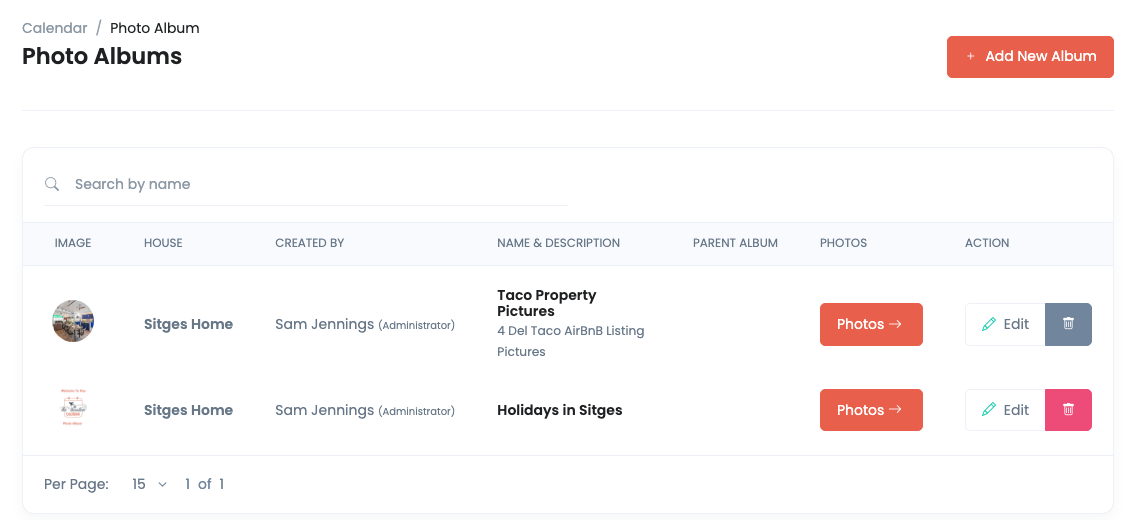
- Open Photo Album from the top menu and press Add New Album.
- Give it a name. Short and plain is best, since it appears under the thumbnail on the album grid.
- Use Select Parent Album if this album belongs inside another one. Leave it alone and the album sits at the top level.
- Add a thumbnail image if you have one in mind. Skip it and the first photo you upload becomes the cover, which is usually fine.
- Write a short description. One line about who was there and what the weather did is worth a lot in five years.
- Press Add Photo Album.
Adding photos
Open the album you want to fill, then drag your photos onto the upload area, or click it and pick them from your computer. Several at once is fine, which is the only sane way to deal with a phone full of a long weekend.
Before a photo is saved you get a moment to tidy it up. Crop off the parking lot, rotate the one your phone decided was sideways, then type a description and press Save Photo. The description is the bit people skip and later wish they had not: names, the year, the dog. Photos without captions become a guessing game surprisingly fast.
Every upload sends a New Picture added to <House> email to everyone on the New photo distribution list, which is what pulls the family back to the site. If your house would rather not get one message per picture, an Administrator can trim that list; see Notifications & emails.
Upload the whole batch in one sitting rather than dribbling photos in over a week. One session means one burst of emails, and the album reads in order.
Viewing photos
Anyone logged in to the house can browse the albums, Guests included, so the neighbors who watered the plants can be sent to look at the pictures too.
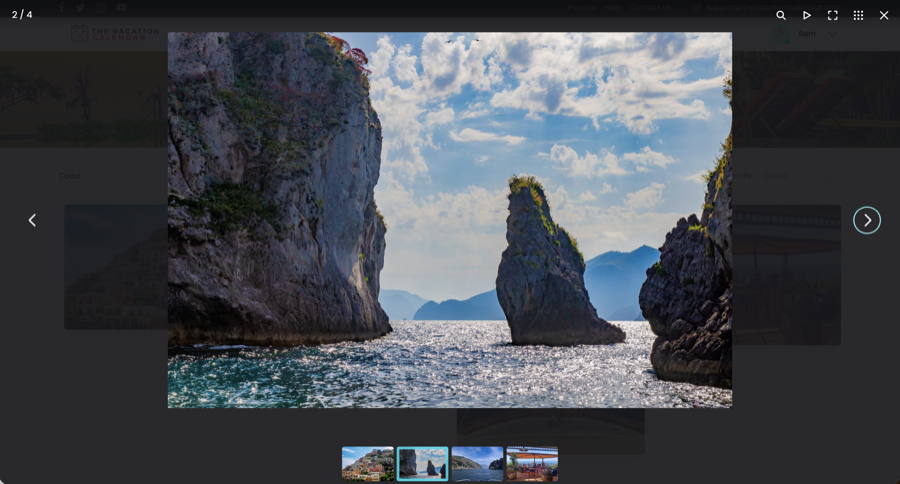
Click any photo to open it full size. Move through the album with the arrows or the thumbnail strip along the bottom, and close it to land back where you were. The breadcrumb trail at the top of an album takes you up a level at a time, so you can climb from a trip album back to the year and across to another trip without starting over.
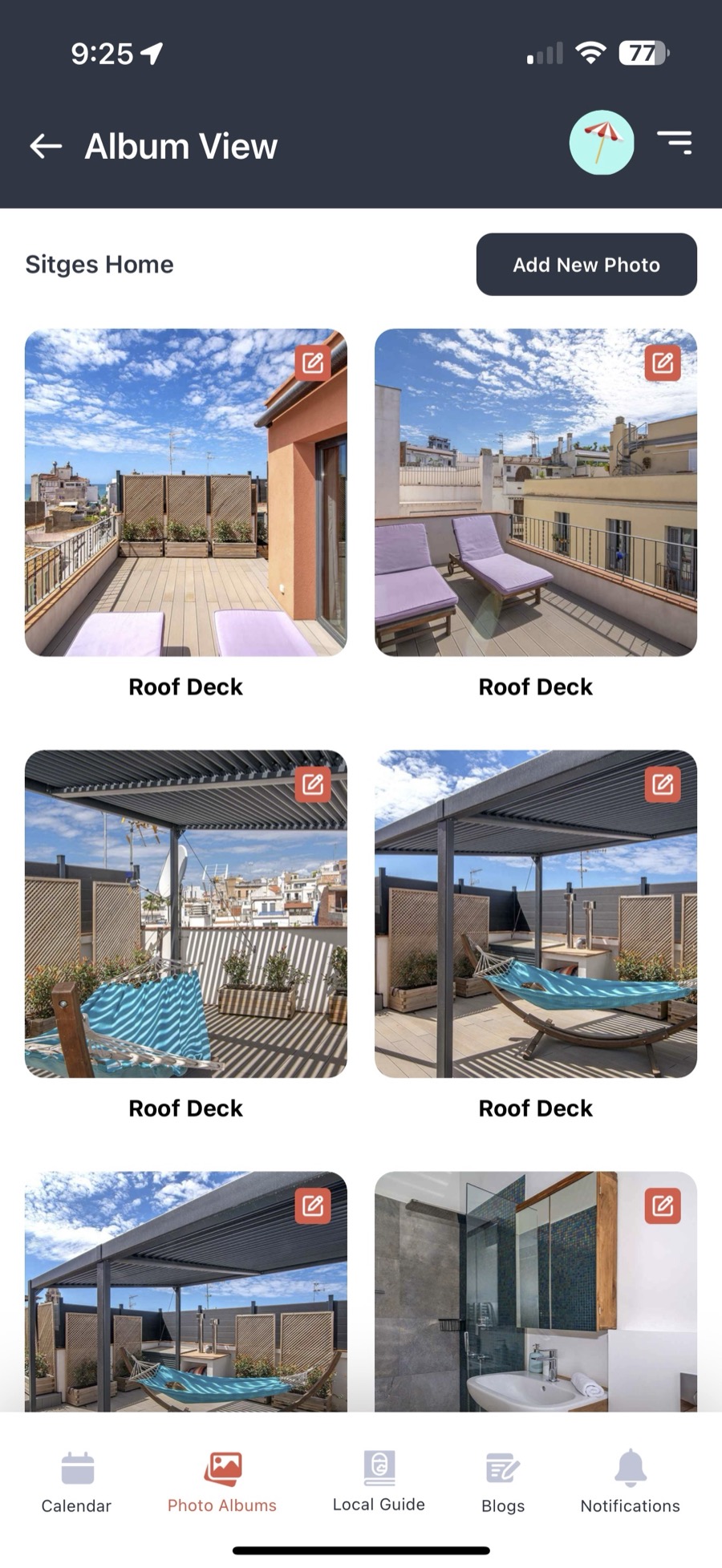
Albums are in the mobile app as well, which is the easiest way to add pictures while you are still at the house.
Moving, deleting and tidying up
Who can remove what follows the same rule as the rest of the site:
- You can delete photos you uploaded yourself.
- Administrators can delete any photo and any album.
An album has to be empty before it can be deleted. That is deliberate: it is a speed bump between an impatient click and four years of Thanksgivings. Delete or move the photos out first, then remove the album.
Once a year, usually in the quiet part of winter, it is worth ten minutes of tidying. Close off the year that just ended, make the album for the next one, fix the two albums somebody created in a hurry, and delete the forty near-identical shots of the same sunset. Nobody will miss them.
Deleting is permanent. There is no trash can to fish a photo back out of, so if you are unsure, download it first.
Common questions
Related topics
Still stuck?
Send us a note with your house name and a real person will answer. Short video walkthroughs are on our YouTube playlist.


