Logging in & your house link
The three-step login, the bookmarkable house link that skips it, and how the shared Guest password works.
Older videos say "Owner" where the site now says "Scheduler". Same role, new name.
The three-step login
Your house has its own private website, and the login is built to keep it that way: nobody can wander in without knowing which house they are looking for. It takes three quick steps, and after the first time your browser remembers most of it.
- Find your house. Go to thevacationcalendar.com/login. The page says Search House. Start typing your House Name into the search box and pick your house from the list that appears.
- Say who you are. Choose Administrator & Scheduler if you have your own login, or Guest if you were given the shared guest password.
- Sign in. Enter your email address (your username works too) and your password, then press Log in.
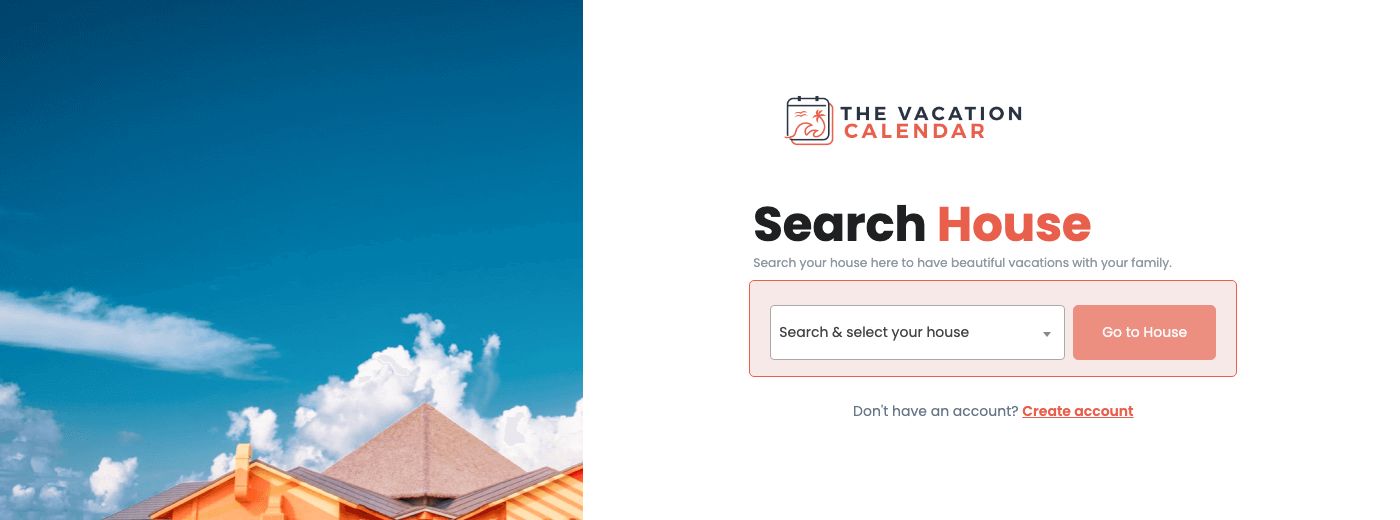
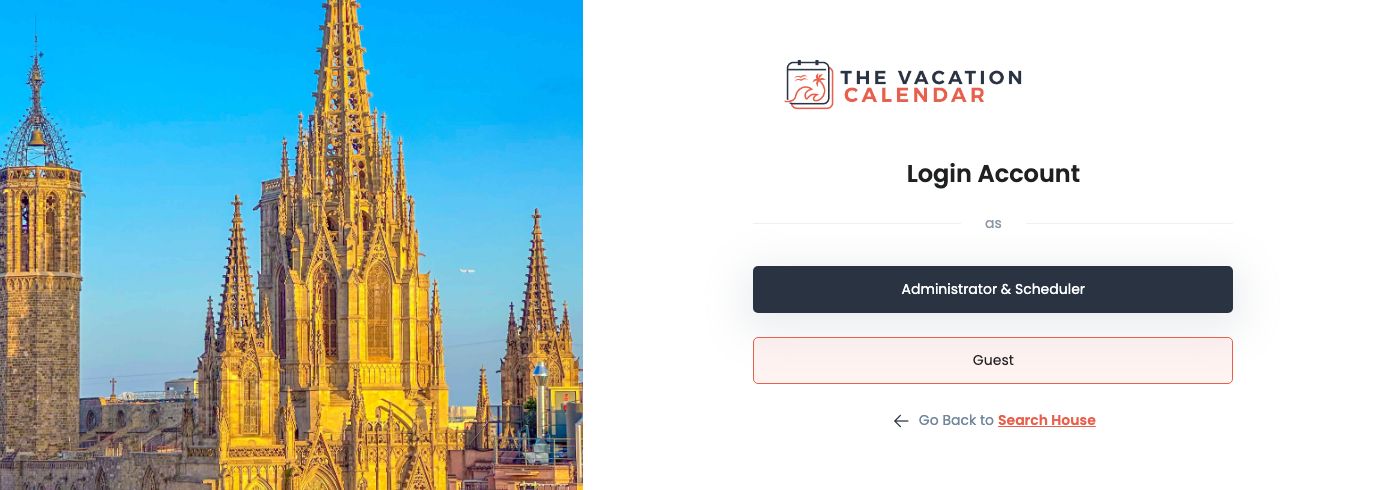
If the password is wrong, or the email does not belong to this house, you will see a message telling you the credentials do not match. It is almost always one of three things: a typo, the wrong house, or the Guest button when you meant Administrator & Scheduler. Try again before assuming your account is broken.
Check the Remember me box on the login form and you can close the browser and come back later without signing in again. On a shared or family computer, leave it unchecked.
Your house link
You only need the house search once. Every house has a direct link that skips straight past it:
https://www.thevacationcalendar.com/login?houseId=XXXXX
The XXXXX is your own house number. Follow that link and you land on the role choice with the house already chosen, which is exactly what you want to send to relatives who will never remember the house name.
Administrators can find the house link in two places: the welcome email that arrived when the account was created, and the login link inside the emails sent from Settings → Users when you send a user their details. See Users & guest access for how to send those.
This is the single most useful thing you can do for your family in the first ten minutes: bookmark the house link, send it round by text and by email, and stick it on the fridge door. It is the end of "what was the house called again?"
The site also remembers the last house you used, in a cookie on that device. When it does, the login page offers a shortcut that reads Click here to log into <House> as …. One click and you are at the password box.
Additional properties do not get login links of their own. Log into your primary house, then switch houses inside the site. See Multiple properties for how switching works.
Logging in as a Guest
Guests are the easy case. There is one shared Guest password for the whole house, and no username to remember: choose Guest on the login page, type the password, and you are in.
That one password covers everyone you want to let look around — the friends borrowing the house in September, the cousins who only want to see the photos, the neighbor who waters the plants. They can read the calendar, browse albums, sign the guest book and comment on the blog, but they cannot change your settings or edit anybody's vacation. The full breakdown is in Roles & permissions.
The Administrator sets and changes the Guest password on the Users page. Because it is shared, change it whenever the guest list changes: after a rental season, say, or when someone who once had it is no longer part of the circle.
If a member of the family is doing real work on the site — scheduling vacations, writing blog posts, uploading photos — do not hand them the Guest password. Give them a Scheduler account instead so the calendar shows who booked what.
Forgot your password?
It happens to everyone once a year.
- On the login page, click Forget Password?.
- Press Reset.
- Enter the email address on your account and submit the form.
- Open the reset link that arrives by email and choose a new password.
If no email turns up within a few minutes, check the spam folder, and check you used the address your account was created with rather than a newer one.
Guests cannot reset the Guest password themselves — there is no email address attached to it, so there is nowhere to send a link. Ask your Administrator, who can look it up or set a new one in seconds.
Once you are back in, it is worth a minute in Your account & security to check the email address on your profile is one you actually read.
Common questions
Related topics
Still stuck?
Send us a note with your house name and a real person will answer. Short video walkthroughs are on our YouTube playlist.


