Scheduling a vacation
Add, edit, color-code, repeat and delete vacations on the shared calendar, and ask to join a vacation or use the house.
Older videos say "Owner" where the site now says "Scheduler". Same role, new name.
Adding a vacation
This is the part everybody came for. Someone decides they want the house for a week in July, and thirty seconds later the whole family can see it.
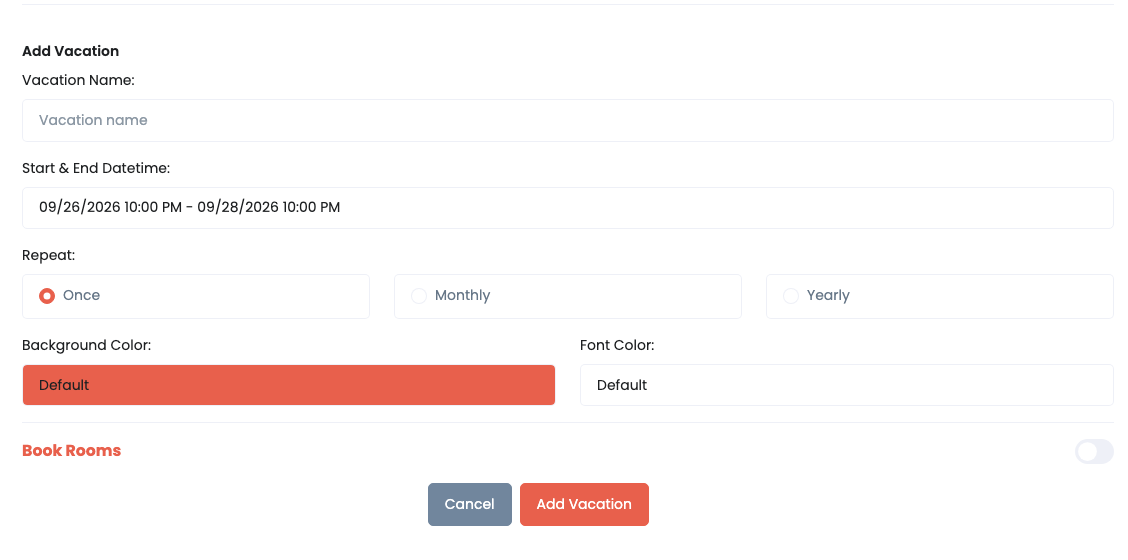
- Click the day you want to arrive. Any free date on the calendar opens the Schedule Vacation page. The Schedule Vacation button above the grid does the same thing.
- Name it. The Vacation Name is what your family reads on the calendar, so "The Harpers, Fourth of July" beats "Vacation 3". Up to 100 characters, and it is the one field you cannot skip.
- Set the dates. Start and end live in a single range picker. The times are already filled in from your house's Vacation Default Time, so usually you only touch the days.
- Choose your colors. Pick a Background Color and a Font Color. The site remembers both for next time.
- Book rooms, if your house uses them. Switch on Book Rooms and say who is sleeping where. See Booking rooms.
- Press Add Vacation.
You land back on the calendar with your week blocked out, and an email titled New Vacation added to <House> Calendar goes to everyone on the Changes to calendar distribution list. That is how the cousin who never logs in still finds out. If your house uses approvals, the email waits until the vacation is approved. See Notifications & emails for who hears what.
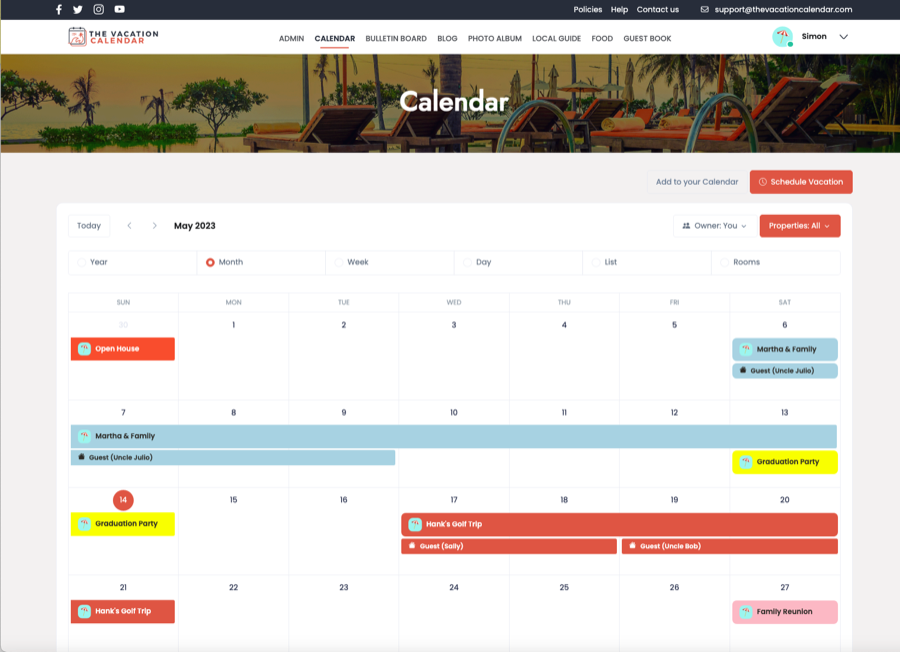
A date with a vacation on it opens that vacation rather than a blank form. To add a second booking in the same stretch of dates, use the Schedule Vacation button instead.
If the site refuses your dates, it is a house rule rather than a bug: the booking season may not be open yet, your trip may be longer than the house allows, or the week may already be spoken for. Your Administrator sets all of that in Calendar rules. And if your house uses Vacation approvals, your booking arrives in gray and waits for a yes.
Administrators get one extra field: they can say which Scheduler the vacation belongs to. Handy when your aunt calls rather than logs in.
Color-coding by family
Give every branch of the family its own color and the calendar starts answering questions before anyone asks them. Blue is always Dad's side, green is always the Harpers, red is the week the house is rented out.
Two small things make it work. Agree the colors once, out loud, so nobody claims teal twice. And check the Font Color against the background you picked, because white writing on pale yellow is a lovely idea that nobody can read.
Two colors are chosen for you: pending vacations show gray until they are approved, and imported Airbnb or VRBO bookings use their feed's color. Both are meant to stand out.
Repeating vacations
Some weeks come around every year without discussion. Thanksgiving. The first week of August. The fishing trip that has happened since 1994.
On the Schedule Vacation page, set Repeat to monthly or yearly instead of once, then set the repeat interval, anywhere from 1 to 30. An interval of 1 with yearly means every year; 2 means every other year, for the families who alternate.
Repeats are perfect for traditions and for the annual closing-up weekend. They are a poor fit for anything you might move, since you will be editing the same booking every year anyway.
Editing and deleting
Click the vacation on the calendar to open it. Change the name, the dates, the colors or the rooms, and save. Who may do this is simple:
- Schedulers can edit and delete their own vacations.
- Administrators can edit and delete anybody's.
Deleting asks you to confirm with a button marked YES, DELETE!, in capitals, because there is no undo. Once it is gone the dates are free again and a Vacation removed email goes out with the dates in it, so nobody turns up in September to a house that is no longer theirs.
If your plans have only shifted by a day or two, edit rather than delete and re-add. The booking keeps its history that way, which the reports will thank you for.
Informational entries
Not everything on a calendar is a stay. The cleaner comes on Fridays. The property tax is due in March. The dock goes in the second week of May. Those belong on the calendar, but they must not block anyone from booking.
That is what informational entries are for. An Administrator switches them on in Admin → Settings → Calendar Settings under Informational Entries, and from then on the calendar has its own informational entries screen. Add a title, the dates, and a repeat of Weekly or Yearly if it happens again next week or next year.
These entries appear alongside vacations but count for nothing else: they do not reserve the house, they do not need approval, and they never stop anyone booking those days.
Request to Join and Request to Use
Two polite ways to ask, instead of booking over somebody.
Request to Join is for a vacation that is not yours. Click it on the calendar and you get a short form asking to come along. Sending it emails the person whose vacation it is, and copies you, so the conversation starts without anybody editing anybody else's week.
Request to Use House is for Guests. A Guest who clicks a free date gets a form asking for a name, an email address and the dates they have in mind. That goes to everyone on the Request to Use House distribution list, and an Administrator can then book it, or not. If you would rather Guests booked for themselves, there is a setting for that in Vacation approvals & guest requests.
Common questions
Related topics
Still stuck?
Send us a note with your house name and a real person will answer. Short video walkthroughs are on our YouTube playlist.


