Roles & permissions
Administrator, Scheduler and Guest: what each role is for and exactly who can do what across the site.
Older videos say "Owner" where the site now says "Scheduler". Same role, new name.
The three roles
Sharing a house works best when everyone knows what they are allowed to touch. The site keeps that simple with three roles, and every person who logs in is exactly one of them.
- Administrator. The person who created the account, plus anyone else they add as one. Administrators hold the keys: settings, users, billing, approvals, and the right to edit or delete anything on the site, whoever created it.
- Scheduler. A family member with their own username and password. Schedulers are the people who actually book the house. They schedule vacations, and they can edit or delete the things they created themselves — their vacations, their blog posts, their photos. They cannot reach the settings pages.
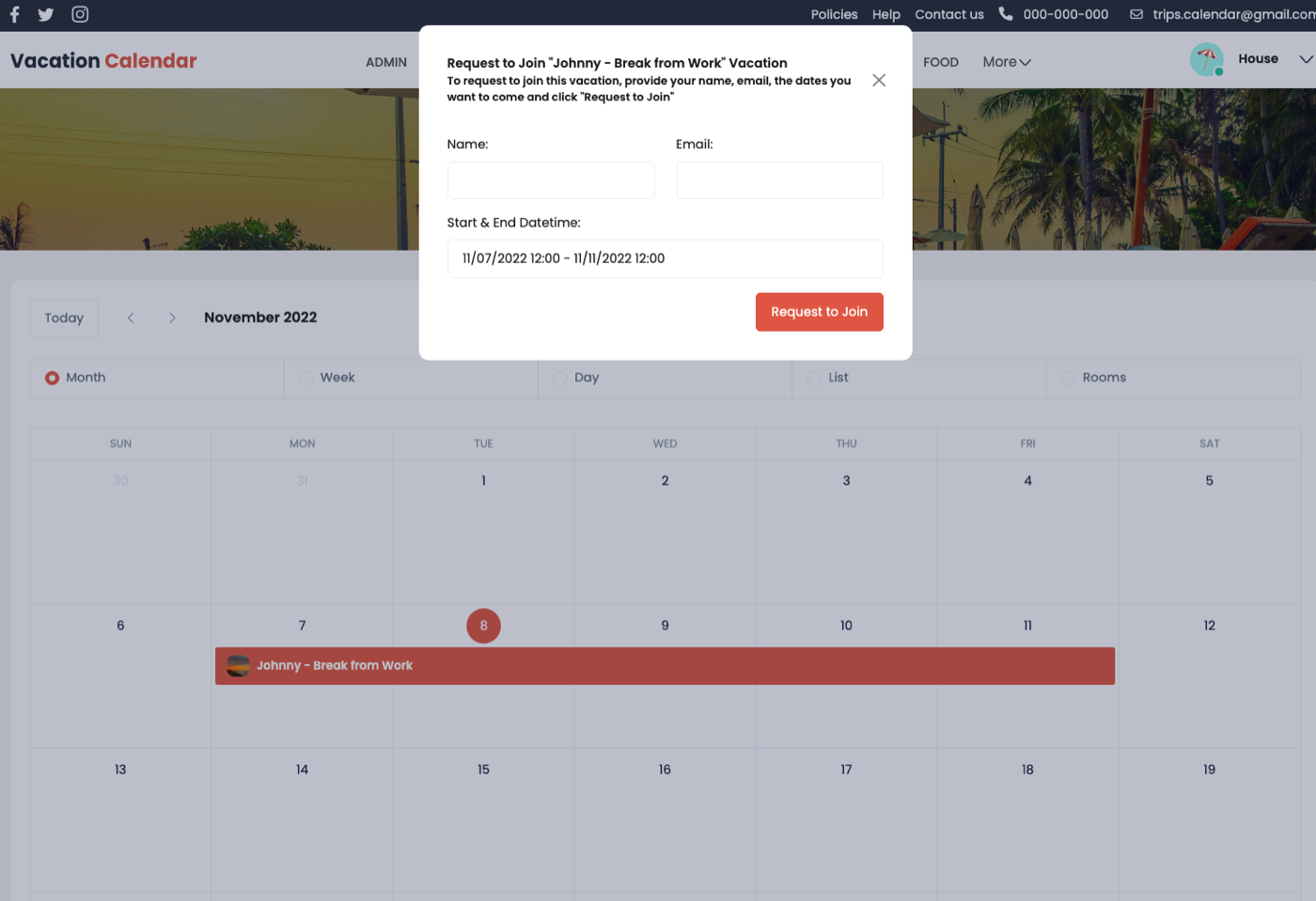
- Guest. Everyone else you want to let look around, sharing one password for the whole house. Guests read rather than write: the calendar, the photos, the blog, the local guide. They can sign the guest book, rate a restaurant and leave a comment, and they can ask to use the house or join a vacation.
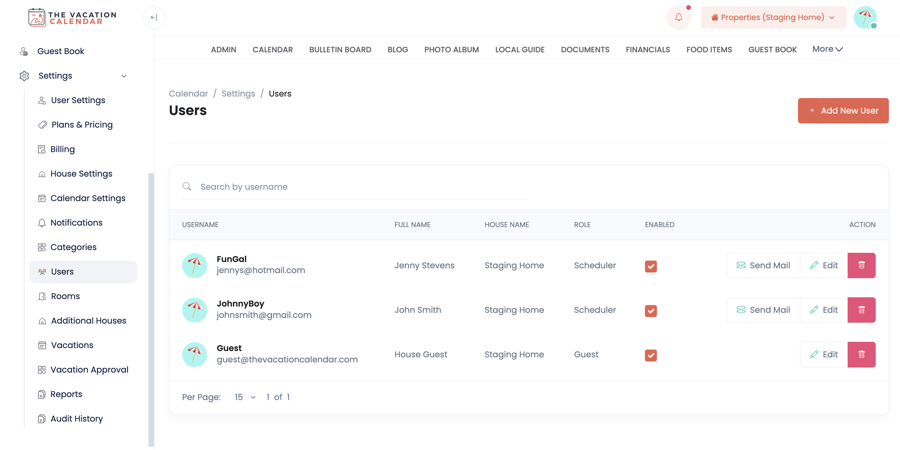
Schedulers and extra Administrators are added one at a time on the Users page; the Guest password is set there too. Users & guest access walks through both.
Guests get one extra ability if you want it. Switch on Allow guest to schedule vacations. and a Guest can add a vacation themselves — but it always lands as a pending request for an Administrator to approve, never straight onto the calendar. See Vacation approvals & guest requests.
Administrators who also schedule
Most Administrators are not just the caretakers of the settings — they use the house too. So there is a preference that lets an Administrator have vacations of their own on the calendar, under their own name and color, rather than only managing everybody else's.
You will find Allow Administrator to Schedule Vacations in Settings → House Settings → Preferences. New accounts have it switched on, so if you have never gone looking for it, it is almost certainly already on.
Turn it off if you want a clean split between the person who runs the calendar and the people who book it — a property manager, say, or a family where one cousin volunteered to administer and never actually visits.
An Administrator's vacations never wait for approval. Whatever your approval settings say, they apply to Schedulers and Guests, never to you. More in Vacation approvals.
Who can do what
The short version: Administrators can do everything, Schedulers can create and look after their own things, Guests can look and comment. The long version is below. A dash means no, and "if enabled" means an Administrator decides it in House settings or Calendar rules.
| What | Administrator | Scheduler | Guest |
|---|---|---|---|
| View the calendar | ✓ | ✓ | ✓ |
| Add a vacation | ✓ | ✓ | If enabled — always pending |
| Edit or delete anyone's vacation | ✓ | – | – |
| Approve vacations | ✓ | – | – |
| Request to Join / Request to Use House | ✓ | ✓ | ✓ |
| Calendar Settings, Notifications, Users, Categories, House Settings, Billing, Audit History, Reports | ✓ | – | – |
| Set up rooms | ✓ | – | – |
| Book rooms in a vacation | ✓ | ✓ | – |
| Bulletin board: post | ✓ | – | – |
| Bulletin board: view | ✓ | ✓ | ✓ — private posts hidden |
| Blog: write a post | ✓ | ✓ | – |
| Blog: comment and like | ✓ | ✓ | ✓ |
| Photo albums: create and upload | ✓ | ✓ | – |
| Photo albums: view | ✓ | ✓ | ✓ |
| Local guide: add an entry | ✓ | ✓ | – |
| Local guide: rate and comment | ✓ | ✓ | ✓ |
| Guest book: sign it | ✓ | ✓ | ✓ |
| Guest book: approve entries | ✓ | – | – |
| Food and shopping lists: edit | ✓ | ✓ | – |
| Documents: upload | ✓ | – | – |
| Documents: view | ✓ | If enabled — on by default | If enabled — off by default |
| Financials | ✓ all entries | Own entries, if enabled — on by default | View only, if enabled — off by default |
| Calendar import and export | ✓ | ✓ | – |
| Switch between properties | ✓ | If assigned to more than one | – |
| Own profile and password | ✓ | ✓ | – |
Two rows are worth a second look. Documents and Financials both start closed to Guests, which is usually right — the insurance policy and the propane bill are not holiday reading. Open them up when your family wants everything in the open. Both are covered in Documents and Financials.
Common questions
Related topics
Still stuck?
Send us a note with your house name and a real person will answer. Short video walkthroughs are on our YouTube playlist.


