House settings & personalization
Choose US or international date and time formats, upload house and login images, set preferences, and manage the categories used across the site.
Date & Time Format
Most of what makes the site feel like your house rather than a piece of software lives in one place: Admin → Settings → House Settings. It is a short page of cards, it takes five minutes, and it is the difference between a tool the family tolerates and one they recognize.
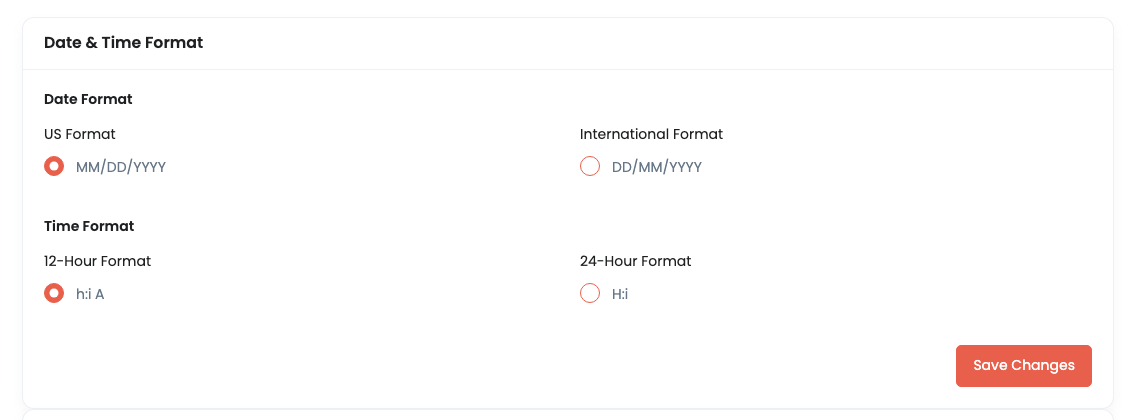
Start at the top, with the card that causes the most confusion if you get it wrong. Date Format offers two choices:
| Setting | Fourth of July 2026 looks like | Pick it if |
|---|---|---|
| US Format (MM/DD/YYYY) | 07/04/2026 | Your family is in the United States. |
| International Format (DD/MM/YYYY) | 04/07/2026 | Your family, or your house, is anywhere else. |
Underneath, Time Format chooses between 12-Hour Format and 24-Hour Format. Press Save Changes and both settings apply everywhere at once — the calendar, vacation forms, financial entries, reports, and the notification emails the site sends out. Nobody has a personal preference to set; the house has one format and everybody reads the same dates.
A house with American and European families in it should settle the format on day one. 04/07/2026 means two entirely different weeks depending on who is reading, and that is not an argument you want to have from an airport.
House image and login page image
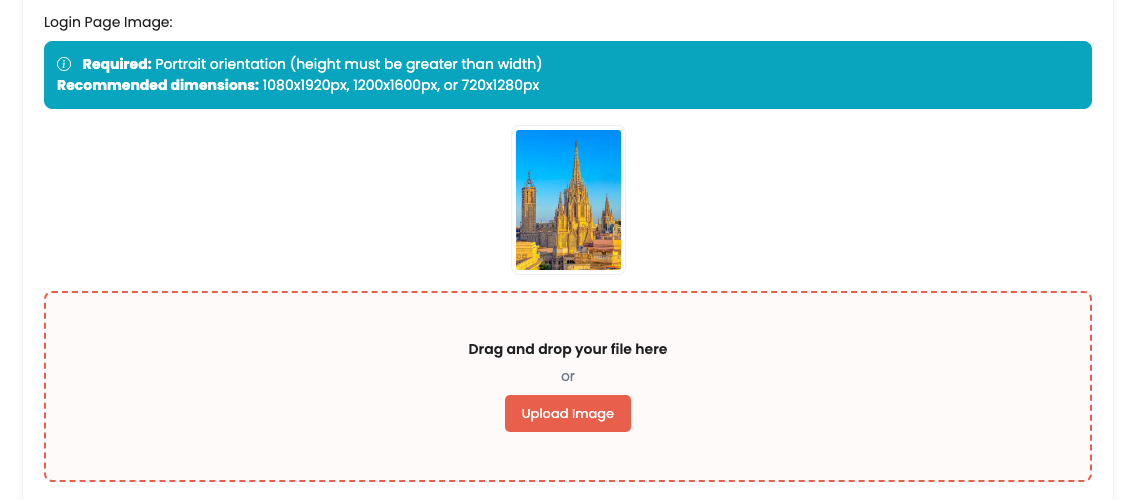
Scroll down to House Details and you get the bit everyone enjoys. Two images, each with a switch that says Show Default Image. or Show Default Login Image. — leave the switch on for the stock picture, turn it off to use your own.
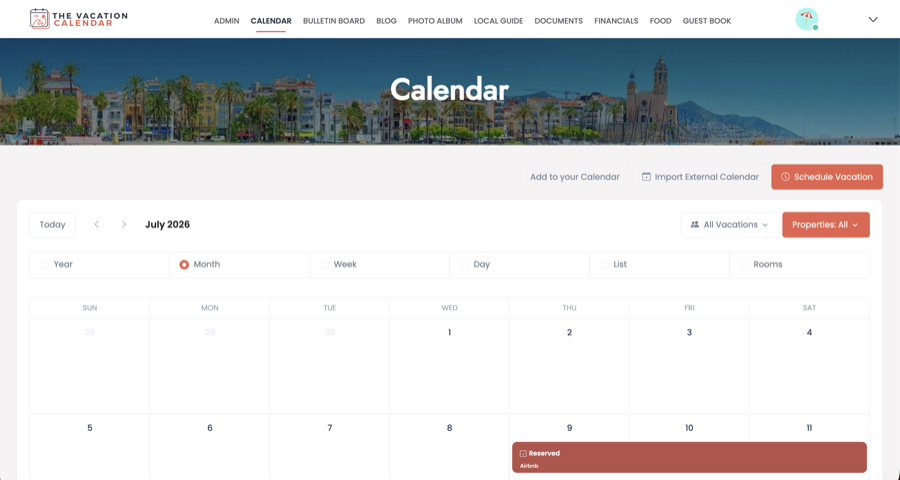
- House Image — the wide banner across the top of the calendar. Landscape, around 1200 by 800. This is the photo of the actual house, or the view from the porch.
- Login Page Image — the tall picture beside the login form. Portrait, around 1080 by 1920. Something upright works best: the dock, the trees, the front door.
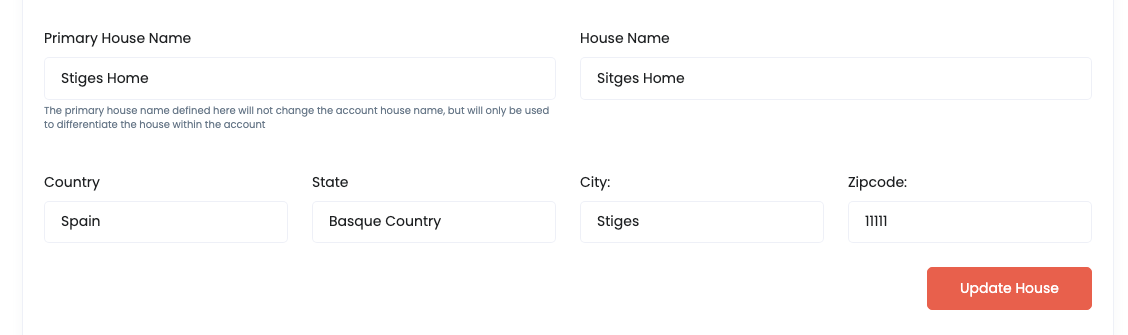
The same card holds the names and the location:
- Primary House Name — the short internal label that identifies this property in menus and switches. Keep it brief.
- House Name — what the house is called on the site, and what appears in the subject line of every notification email.
- Country, State, City and Zipcode — where the place actually is.
Spend two minutes on the photographs. A grandparent who is not sure they have the right website stops worrying the moment they see the porch.
Preferences
The Preferences card holds two switches that change how the calendar behaves.
Vacation List View switches on a separate Vacations screen in the settings menu. On it you add or update a vacation from a form instead of clicking a date on the calendar, and every vacation appears as a searchable list with a date filter. The site is candid about this one: using the calendar is easier, and the separate screen is really there for older browsers that struggle with it. Leave it off unless somebody in the family is losing a fight with their browser.
Allow Administrator to Schedule Vacations decides whether you, as Administrator, also book your own weeks. It is on by default for new accounts, which suits the great majority of houses, where the person running the site is also a person who uses the house. Turn it off if your Administrator is purely an organizer — a property manager, or the one relative who volunteered to keep the site straight without ever staying there.
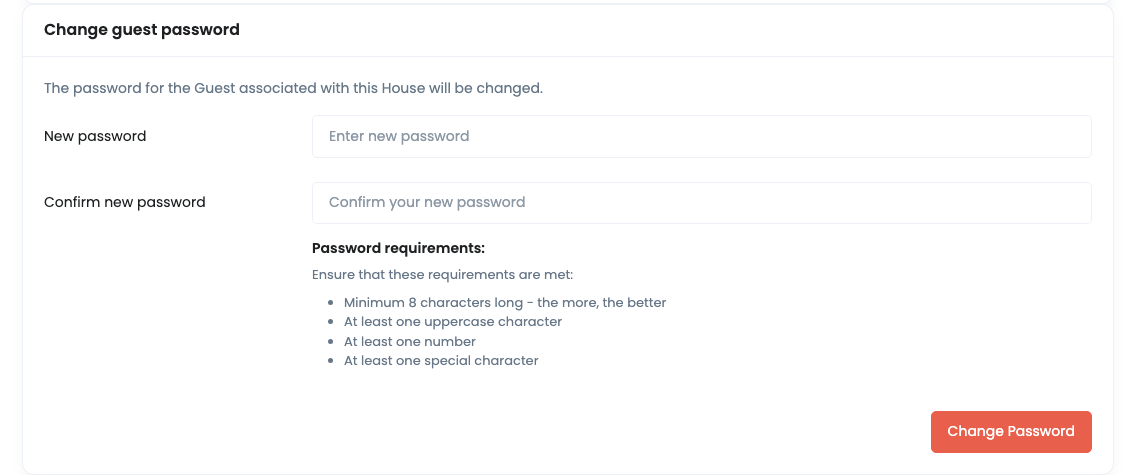
Another card on this page, Change guest password, sets the shared password that everybody outside the family uses. It changes the same password as the Guest row on the Users page, so use whichever you happen to be near. Details in Users and guest access.
House Settings is about how the site looks and reads. The rules about who may book what, and when, are next door in Calendar Settings — scheduling windows, maximum vacation length and overlaps.
Categories
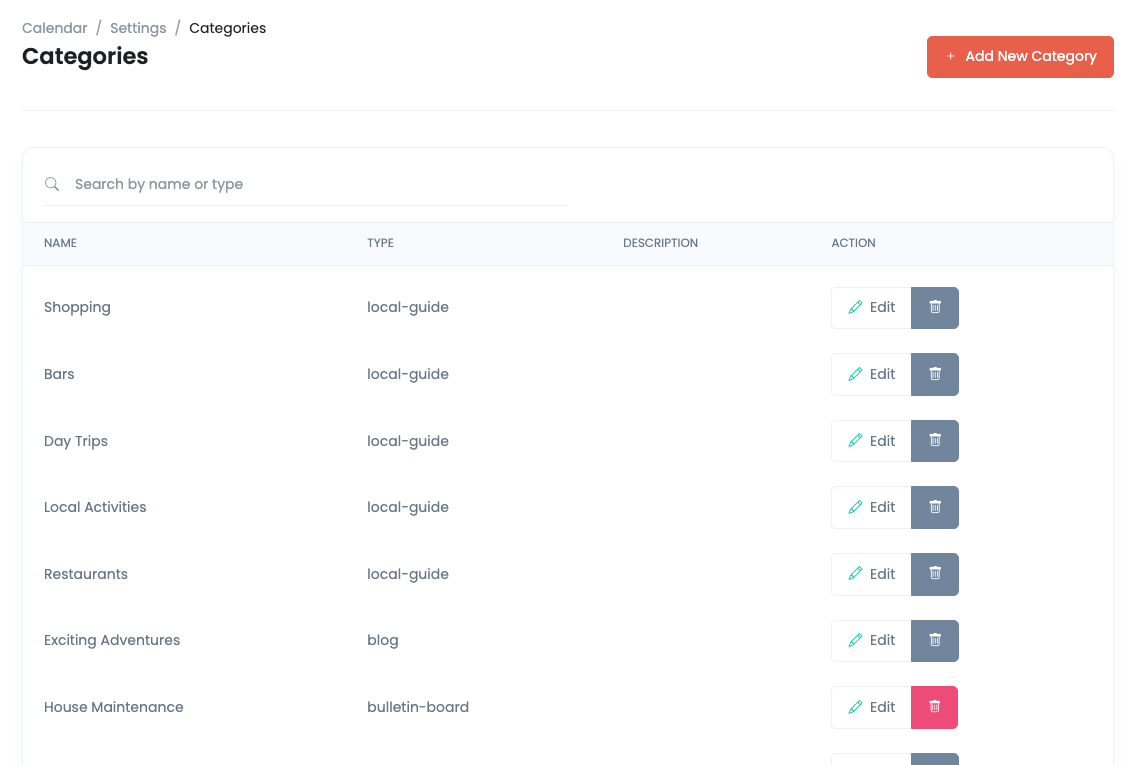
Categories are the labels that keep the written parts of the site from turning into one long scroll. They live at Admin → Settings → Categories.
Press + Add New Category, type a Category name, and then — the part people miss — use the Select Type control to say where it belongs:
| Select Type | Used by | Categories that earn their place |
|---|---|---|
| Blog | The house blog | Trip Reports, Projects, Wildlife, Announcements |
| Bulletins | The bulletin board | Arrival, House Rules, Appliances, Emergencies |
| LocalGuide | The local guide | Restaurants, Activities, Shopping, Services |
Press Add Category Item to save it, and it appears in the list with a delete button on its row. The Local Guide arrives with four categories already set up, and you are free to rename the list to suit your corner of the world — a ski house and a beach house do not need the same headings.
Two habits make categories work. Set them up before anybody posts, because recategorizing a year of entries is nobody's idea of an evening. And keep the list short: four categories everyone uses consistently beat fifteen that each person interprets differently.
Common questions
Related topics
Still stuck?
Send us a note with your house name and a real person will answer. Short video walkthroughs are on our YouTube playlist.


