Calendar rules (Calendar Settings)
Scheduling windows, maximum vacation length, overlap rules, default times, informational entries and row height, all in Calendar Settings.
Older videos say "Owner" where the site now says "Scheduler". Same role, new name.
Where the rules live
Every family has rules about the house. Two weeks each, nobody books next summer before January, the Thompsons always get Labor Day. Calendar Settings is where those rules stop being a group text and start enforcing themselves.
Go to Admin → Settings → Calendar Settings. The page is a stack of cards, one rule to a card, and each card has its own Save Changes button. Change one card, save that card. Rules apply to bookings made from now on, and shrinking a scheduling window never deletes a vacation that is already on the calendar, so you can tighten things up mid-season without anybody losing their week.
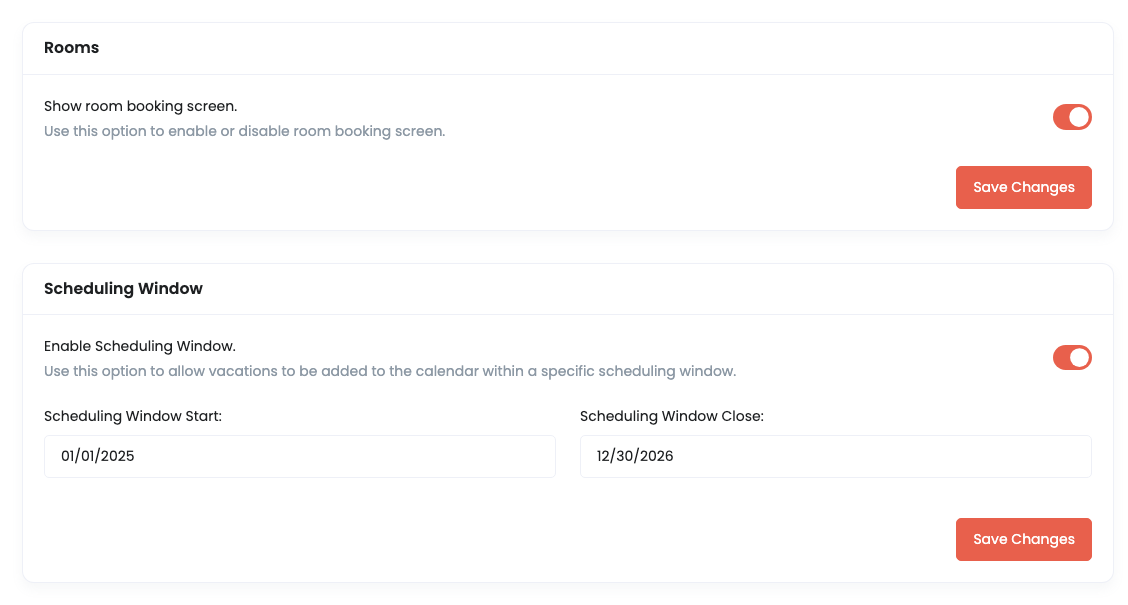
Calendar Settings is an Administrator page. Schedulers and Guests never see it; they simply meet the rules when they book. Tell the family what you have set, or the first refusal will feel like a fault.
Scheduling Window
A scheduling window is the stretch of dates the calendar is open for. It is the answer to the relative who books three summers ahead in a single evening.
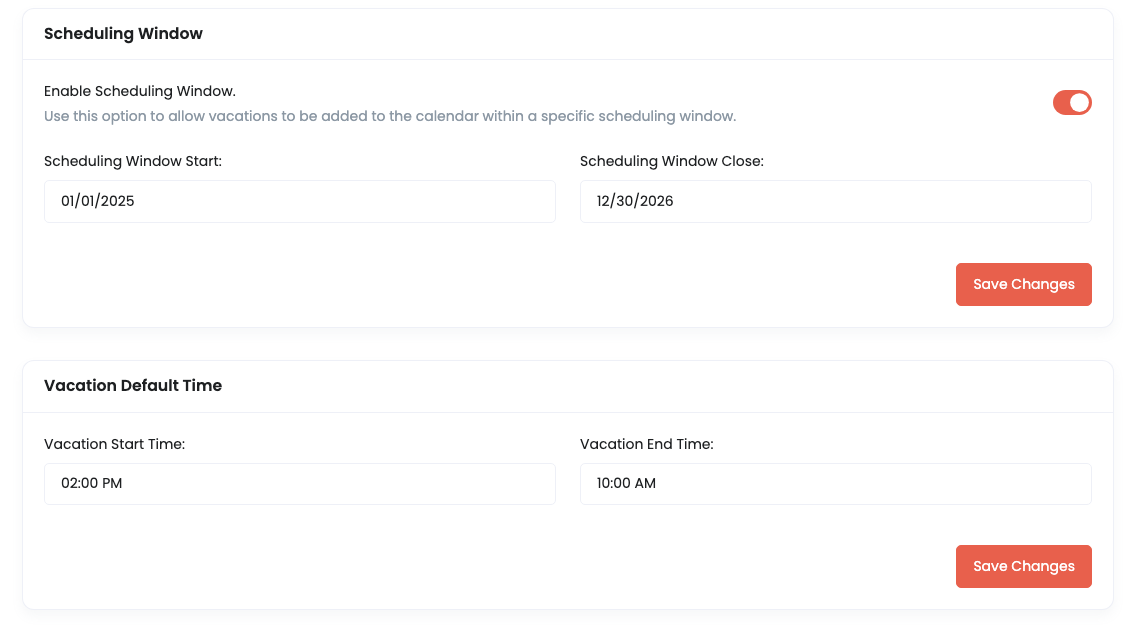
- Switch on Enable Scheduling Window.
- Set Scheduling Window Start and Scheduling Window Close.
- Press Save Changes.
From then on, anyone trying to book outside those dates gets a clear refusal: Unable to create vacation: Dates are outside of the allowed scheduling window of <start> to <end>. Both boundary days are inside the window, so a window that closes on September 30 still lets somebody book the 30th.
Narrowing the window later does not disturb bookings already made. And the window applies to you as well: click a day outside it as an Administrator and the calendar will still say no. Widen the window, make the booking, put it back.
Pair the window with Allow Calendar Access. Leave that on and the family can still look at dates beyond the window, they just cannot book them yet. Turn it off and the calendar stops at the window edge.
Vacation Length
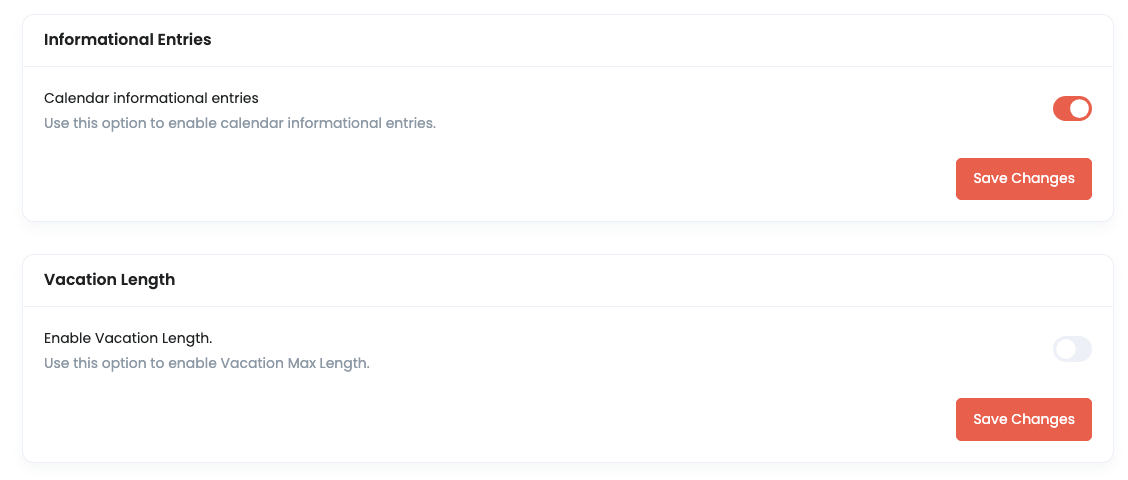
The gentle way to make sure one family does not take August. Switch on Enable Vacation Length., type the number of days a single vacation may run to, and save.
A Scheduler who tries for longer is turned down and can shorten the trip or ask you. Administrators are not limited by this setting, which is what makes it workable: when somebody genuinely needs three weeks for a wedding, you book it for them rather than editing the rule and forgetting to put it back.
Allow overlapping vacations
Two families, the same week in August. What should the calendar do? That is the whole question, and there are three answers.
| Setting | What happens |
|---|---|
| Allow all vacations to overlap | Both families book the week and the calendar shows both. Right for a big house where sharing is normal, and for families who sort it out between themselves. |
| Allow unapproved vacations to overlap | Anyone may request the week, but only one booking gets approved. The best of both: you see all the interest, then decide. |
| Do not allow overlapping vacations | First come, first served. The second family is refused outright. Simple, and occasionally brutal. |
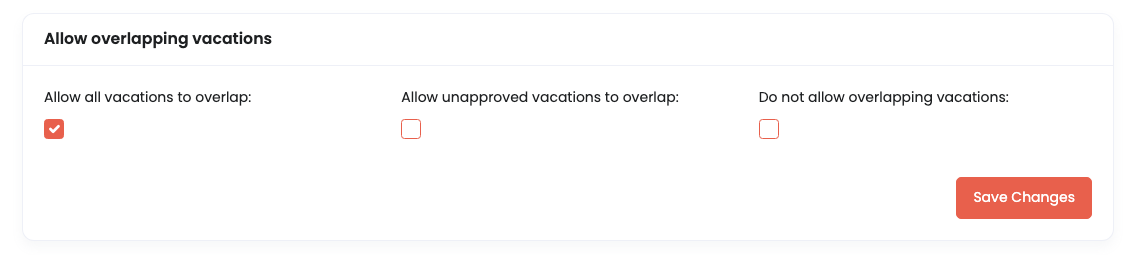
The middle option only earns its keep with approvals switched on, so read it alongside Vacation approvals & guest requests. Whichever you choose, Administrators can always book over an existing vacation, so you can still fix a clash by hand.
Vacation Default Time
Set the check-in and check-out times your house actually uses, and every new booking arrives with them filled in. Most families use something like 1:00 PM to arrive and 12:00 PM to leave, which gives the outgoing family the morning and the incoming family the afternoon.
These are only defaults. Anyone can change the times on a single vacation while they book it. But getting them right here means nobody thinks about it again, and changeover Saturdays stop being a negotiation.
Informational Entries
Switch this on and the calendar gains a second kind of entry for things that are not stays: the cleaner's visit, the water being turned on, the property tax deadline, the dock going in.
Informational entries carry a title, dates and an optional Weekly or Yearly repeat, and they never block a booking. The family can see that the plumber is coming on Tuesday and still book Tuesday. Adding them is covered in Scheduling a vacation.
Calendar Rows Height and Calendar Access
Calendar Rows Height decides how the month grid handles a busy week. Fixed keeps every row the same height, so the month always fits on one screen and a heavy week scrolls inside its row. Dynamic lets rows grow to fit whatever is in them, which is the better choice for a busy house, and much better if you use rooms. Try both; it takes ten seconds to change your mind.
Allow Calendar Access. controls whether people can look at dates outside the scheduling window. Leaving it on is usually kinder: the family can plan ahead even while booking is closed.
Two more cards on this page lead elsewhere. The Rooms card is where you switch on room booking, explained in Booking rooms. The guest vacations card decides whether Guests may book for themselves, explained in Vacation approvals.
Common questions
Related topics
Still stuck?
Send us a note with your house name and a real person will answer. Short video walkthroughs are on our YouTube playlist.


