Reports & audit historyNEW
See who used the house and for how long, what changed on the calendar and when, and the full technical audit log.
Usage by Scheduler
Sooner or later every shared house has the same conversation. One family is certain they never get the place. Another is certain they were only there for a long weekend. Memory is a wonderful thing and it is wrong about roughly everything, which is why the calendar quietly keeps score.
Go to Admin → Settings → Reports and open the Usage by Scheduler tab. It lists every vacation in the period you choose, one row each:
| Column | What it tells you |
|---|---|
| Scheduler Name | Who booked it. |
| Vacation Id | The vacation's number, handy when two trips have the same name. |
| Vacation Name | What it was called on the calendar. |
| Property / House | Which house, if you have more than one. |
| Start Date & Time and End Date & Time | When they arrived and when they left. |
| Duration (days) | How long the stay was. |
Under the list sits the part that ends arguments: a Report Total giving the number of vacations and the number of days, and a Scheduler Subtotals panel with vacations and total days for each person plus a grand total. Those subtotals cover every record in the date range, not only the rows on the page you happen to be looking at, so the numbers are the real ones even when the list runs to several pages.
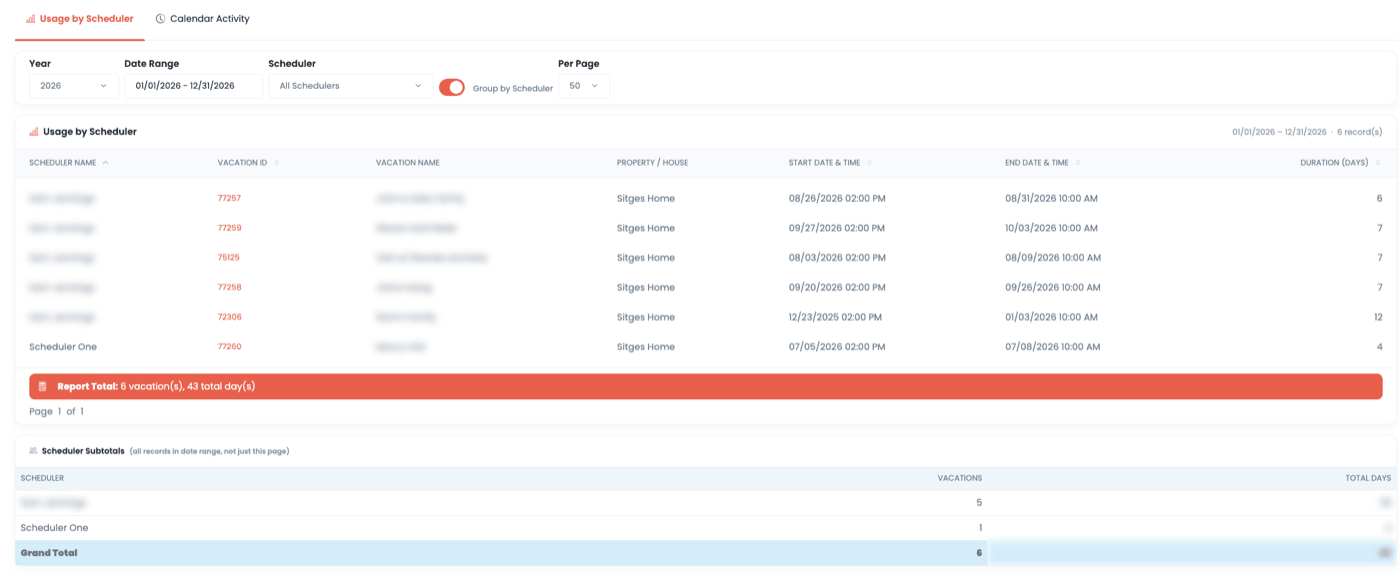
Run this report for the year that just finished and share the subtotals before booking opens for the next one. It is a far easier conversation with numbers on the table than with everyone remembering last August differently.
Calendar Activity
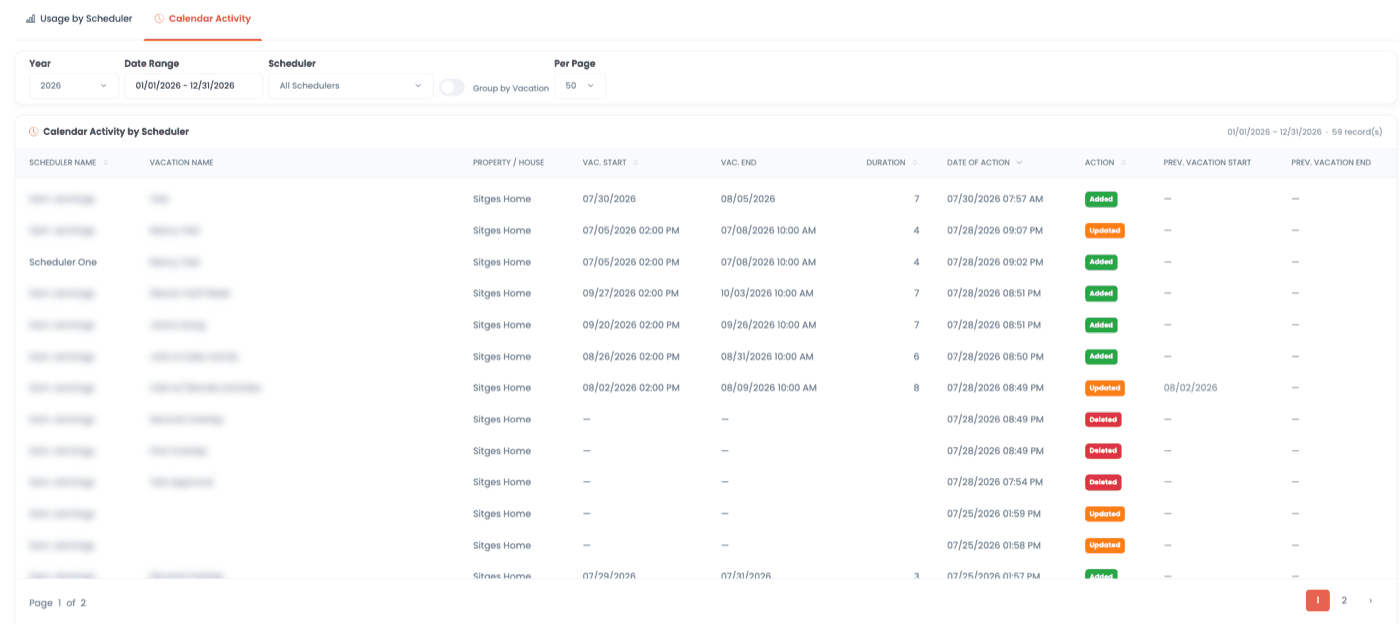
The second tab answers a different and more pointed question: who changed this, and when? Open Calendar Activity and you get the same vacation details plus two more columns:
- Date of Action — when the change was made, to the minute.
- Action — a badge reading Added in green, Updated in orange or Deleted in red.
Two further columns, Prev. Vacation Start and Prev. Vacation End, are filled in only on Updated rows, and they are the useful bit. They show where the vacation used to sit, so you can see that the week of the 12th became the week of the 19th, rather than just that somebody touched it. Every other row shows a dash there, because there were no previous dates to record.
At the bottom of the tab, a Vacation Activity Summary groups every action in the date range by vacation: how many times it was added, updated and deleted, the total number of actions, and the first and last time anybody touched it. One trip with eleven actions against it is usually a family that could not decide, and occasionally two people editing the same week without talking to each other.
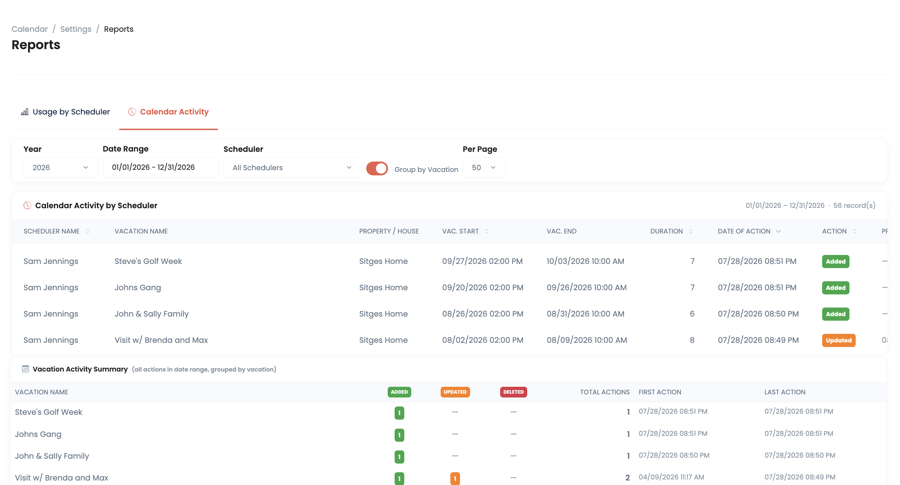
If a vacation has shifted or vanished and nobody is admitting to it, Calendar Activity is the place to look, not the audit log further down this page. It is written in vacations and dates rather than record numbers.
Filters, grouping and paging
Both tabs share one filter bar, and it is worth a minute of your time because the default view is rarely the view you want.
| Year | The quick way to a whole season. Pick a year and the date range follows. |
|---|---|
| Date Range | For anything that is not a calendar year: one summer, one month, the two weeks in which the week in question moved. |
| Scheduler | All schedulers, or just one. Use this when you only want to check a single person's stays. |
| Group by | A switch. On Usage by Scheduler it groups by scheduler; on Calendar Activity it groups by vacation, so all the changes to one trip sit together. |
| Per Page | How many rows at a time. Raise it when you want to read a whole year without paging. |
The column headers sort the list, so you can read a year by person, by date or by length of stay without changing the filters. The record count and the date range are printed at the top right of the table, which is the fastest way to be sure you are looking at the period you meant to. All dates follow the style your house chose in Date & Time Format.
Audit History
Reports are about the calendar. Audit History, at Admin → Settings → Audit History, is about the site, and it is the technical log: every login, every change to content, every change to settings, in one long list, newest first.
Each row records the user who did it, the type of thing that changed, such as Vacations or Users, the IP address they did it from, the event — a single word, Created, Updated or Deleted — and the date and time. There is a search box for filtering by user, and a View button that opens the full record for a row.
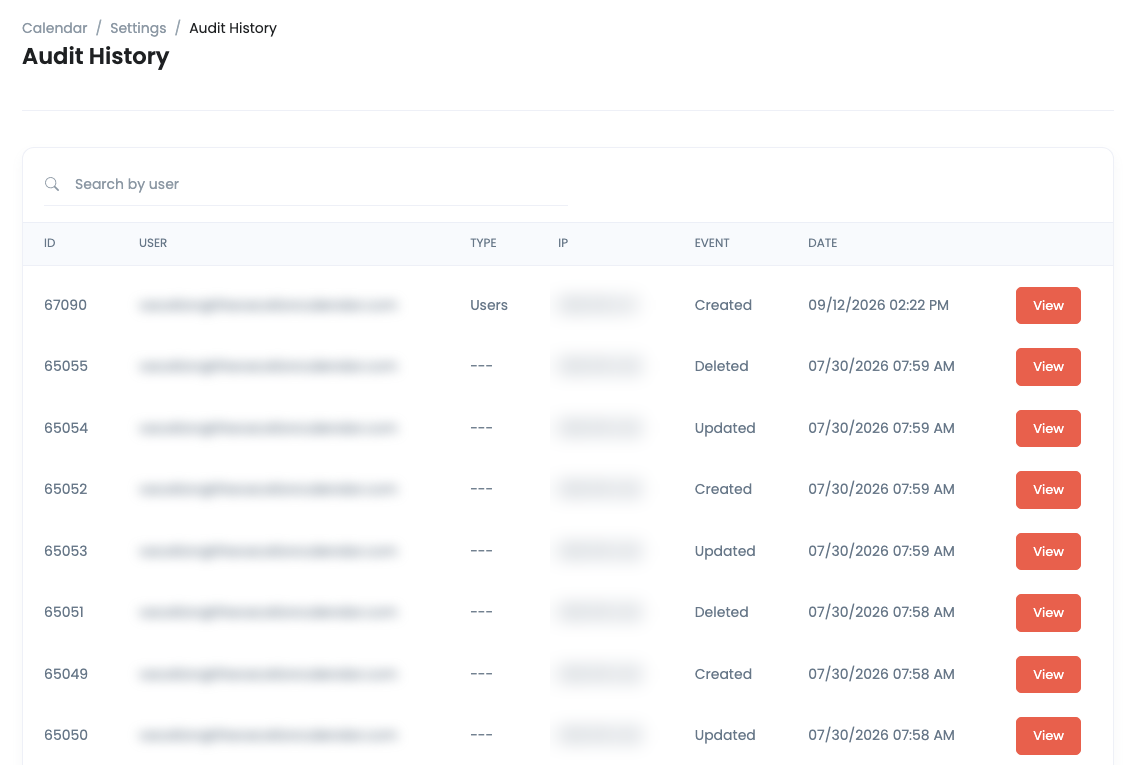
Most weeks you will never open it. It earns its keep on the odd occasions when something genuinely strange has happened — a setting nobody admits to changing, an account that seems to have been used from somewhere unexpected, a piece of content that is simply gone. It is also the honest answer to "is anyone actually using the site?", because logins are in there too.
Audit History tells you what happened. It does not put anything back. If a vacation was deleted, somebody has to add it again — but at least Calendar Activity will tell you the dates it used to have.
Common questions
Related topics
Still stuck?
Send us a note with your house name and a real person will answer. Short video walkthroughs are on our YouTube playlist.


